#Your own booking page
Updated Nov 21, 2026
Guests can book a room themselves, on a page of yours or inside your own website. Their bookings take rooms off sale right away, like any booking you make by hand, so you never sell a room twice.
Everything is under Settings, {{t:set.sec.booking-engine}}.
#Switch it on
- Open Settings, then {{t:set.sec.booking-engine}}.
- Scroll past the photos and tick Take bookings on a public page.
- Under Address of the page, type 3 to 40 letters, numbers or dashes, for example
sunrise-bay. This is the end of the link guests use. - Choose Save. The page says "Saved.".
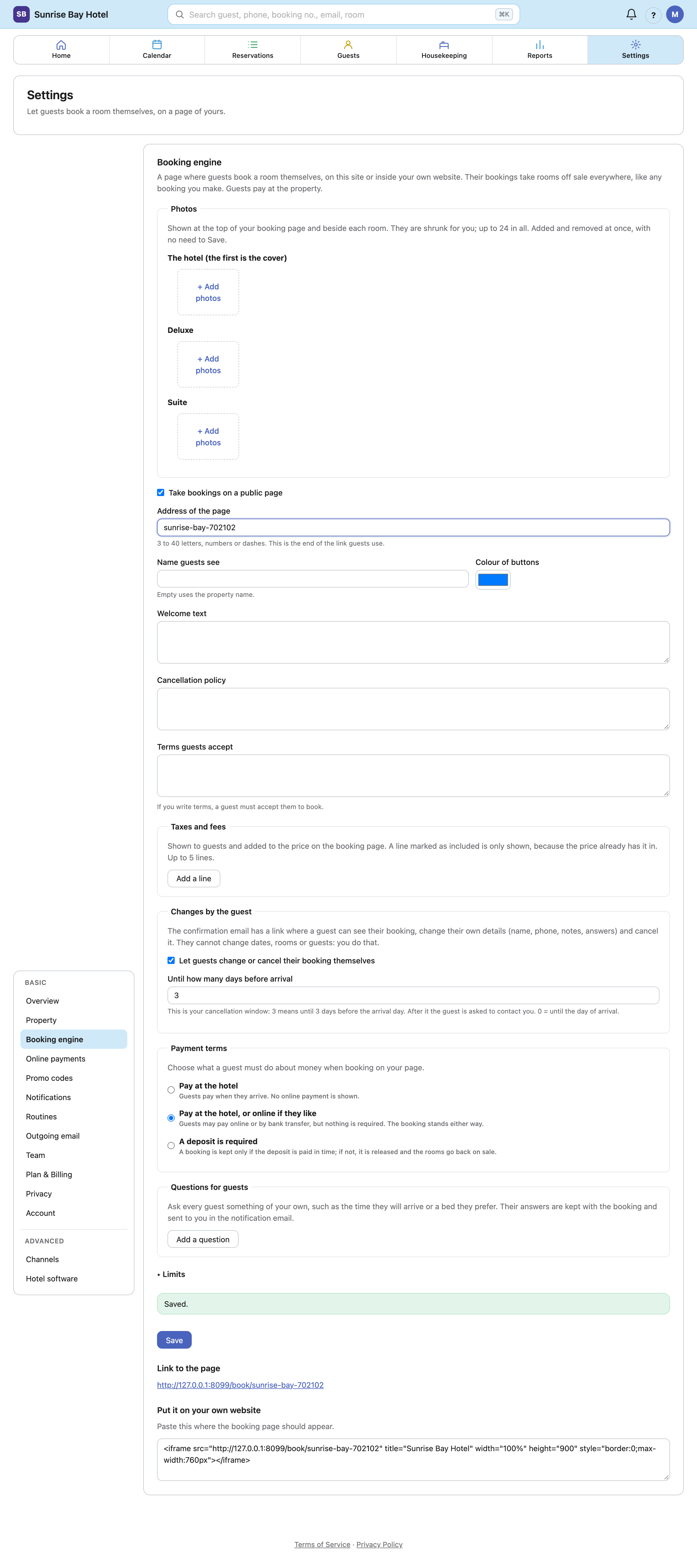
The page now shows Link to the page. Choose Open the page to see it, or copy the link into your website, your Instagram page or your emails. Put it on your own website gives you a snippet to paste where the booking form should appear on your own website.
#What guests see
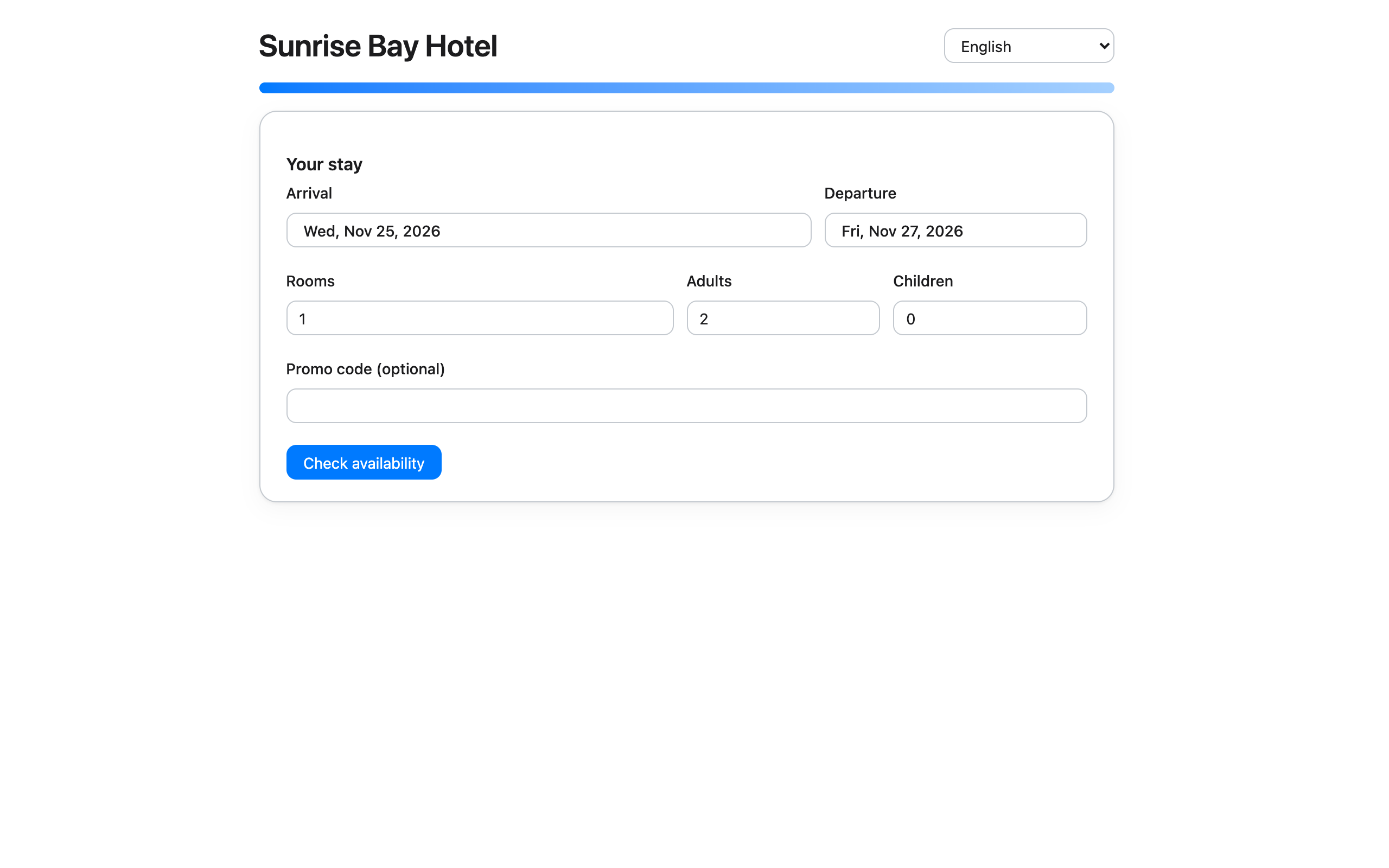
Guests choose arrival and departure dates, the number of rooms, adults and children, and optionally a promo code. Then Check availability.
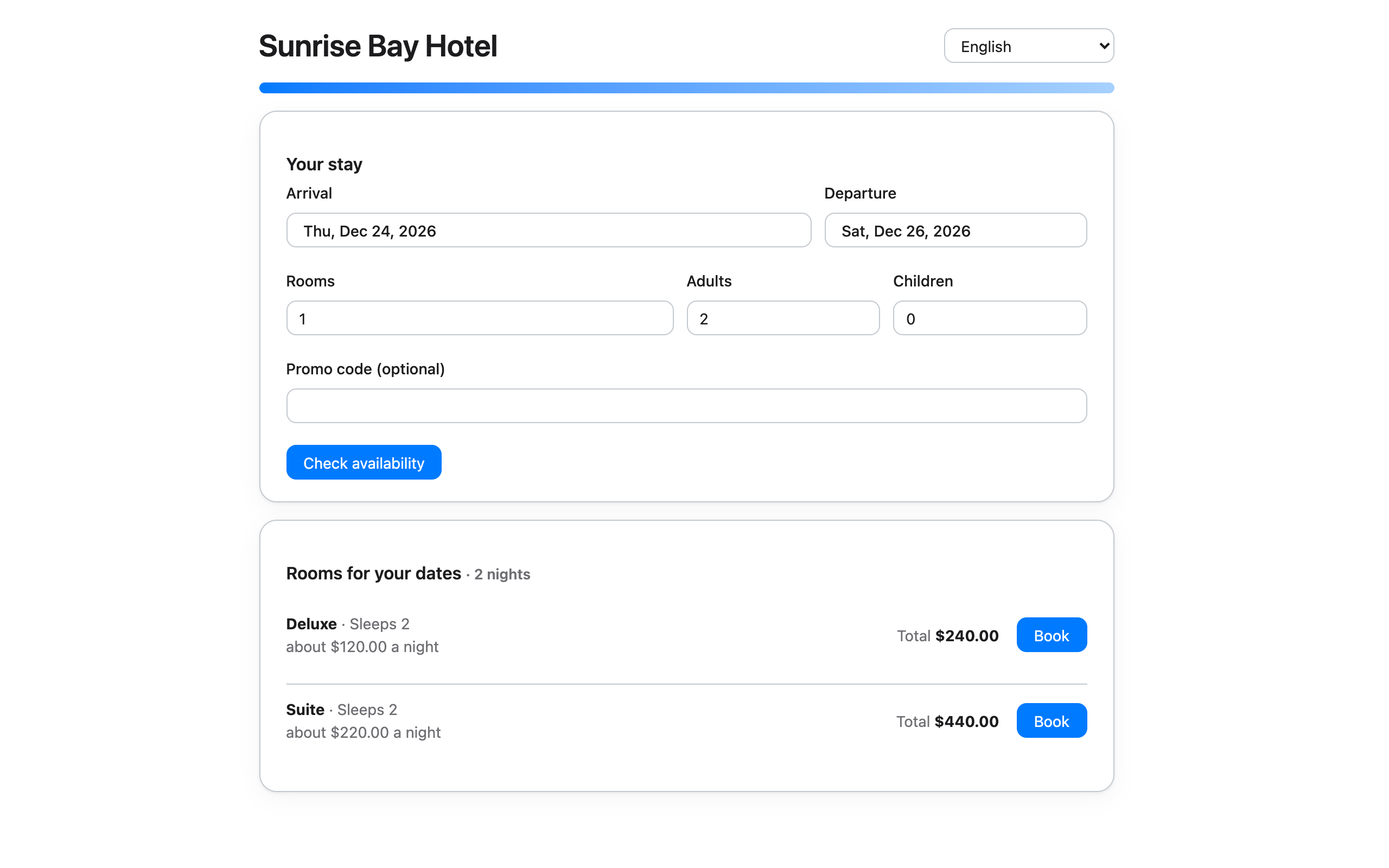
They see only the room types that are free on every night, with the total price, and choose Book. They then enter their name and email, accept your terms if you wrote any, and confirm. They receive a confirmation email with a link where they can see their booking.
If the dates break a rule you set (such as a minimum stay), the page tells the guest which dates would work.
#Make the page yours
On the same settings page:
- Photos: shown at the top of the page and beside each room. Added and removed at once; up to 24 in all. They are shrunk for you.
- Name guests see: leave it empty to use your hotel's name.
- Colour of buttons, Welcome text: a short text at the top.
- Cancellation policy and Terms guests accept: if you write terms, a guest must accept them to book.
- Taxes and fees: taxes and fees shown to guests and added to the price. A line marked as included is only shown, because the price already has it. Up to five lines.
- Changes by the guest: The confirmation email has a link where a guest can see their booking, change their own details (name, phone, notes, answers) and cancel it. They cannot change dates, rooms or guests: you do that. This is on by default; you choose until how many days before arrival a guest may still cancel.
- Questions for guests: Ask every guest something of your own, such as the time they will arrive or a bed they prefer. Their answers are kept with the booking and sent to you in the notification email.
- Limits (folded): Longest stay (nights), Most rooms in one booking and How far ahead guests can book (days). A booking outside them is refused.
#How guests pay
Under Payment terms you choose what a guest must do about money. A new booking page starts with the middle choice:
- Pay at the hotel: Guests pay when they arrive. No online payment is shown.
- Pay at the hotel, or online if they like: Guests may pay online or by bank transfer, but nothing is required. The booking stands either way.
- A deposit is required: A booking is kept only if the deposit is paid in time; if not, it is released and the rooms go back on sale.
Before you can take online payment or a deposit you need a way to receive it. That is under Online payments.
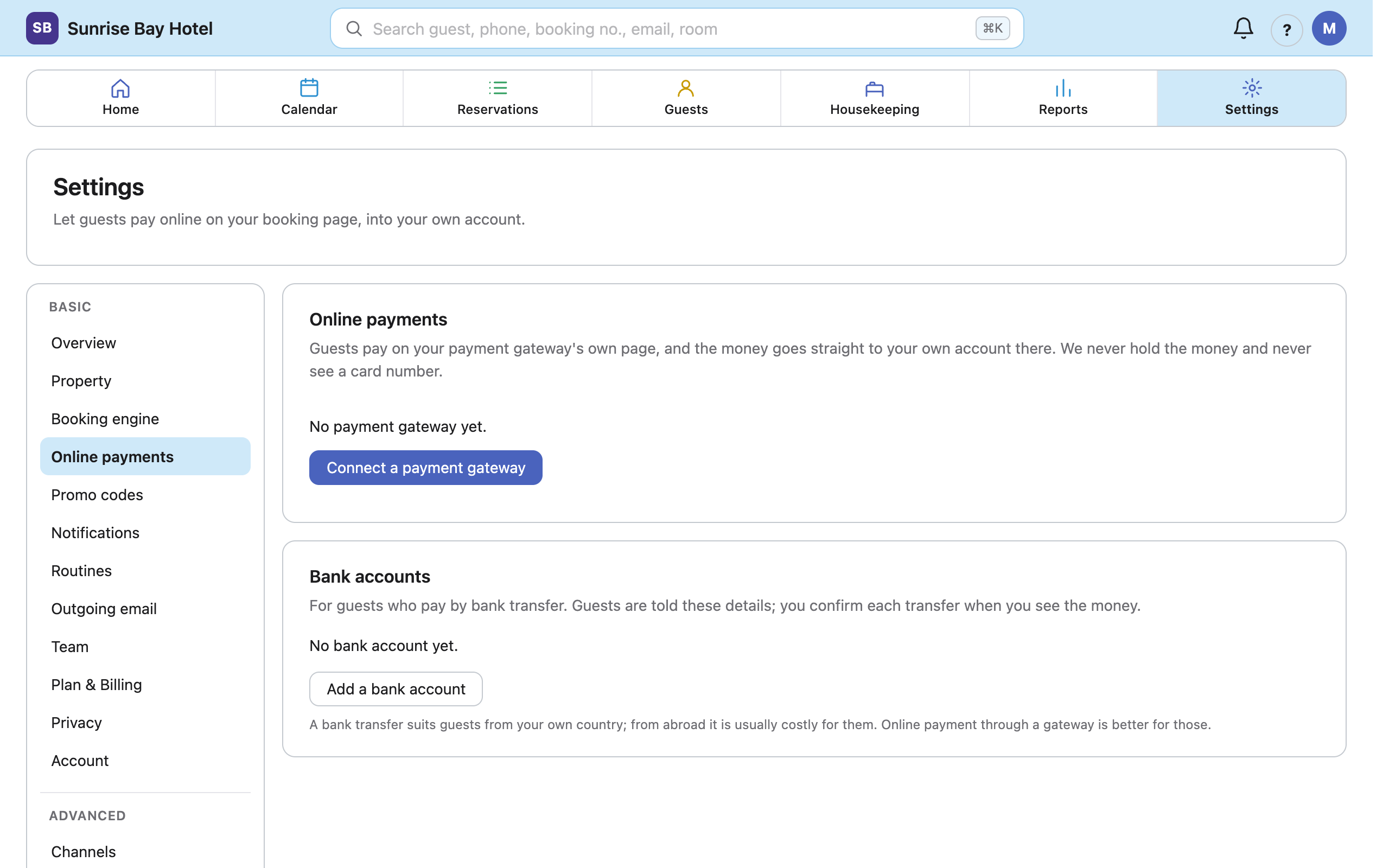
- Payment gateway. Guests pay on your gateway's own page, and the money goes straight to your own account there. Antero never holds the money and never sees a card number. Choose Connect a payment gateway, say where your business account is, and the page shows the gateways that work there. Copy your keys from the gateway's dashboard. Start in test mode: no real money moves, and you can try a payment first. Switch to live when you are happy.
- Bank accounts. For guests who pay by bank transfer. Choose Add a bank account and give the bank, the account holder and the account number. Guests are told these details; you record each transfer when you see the money (on the reservation, Record a transfer). A bank transfer suits guests from your own country; from abroad it is usually costly for them.
#Promo codes
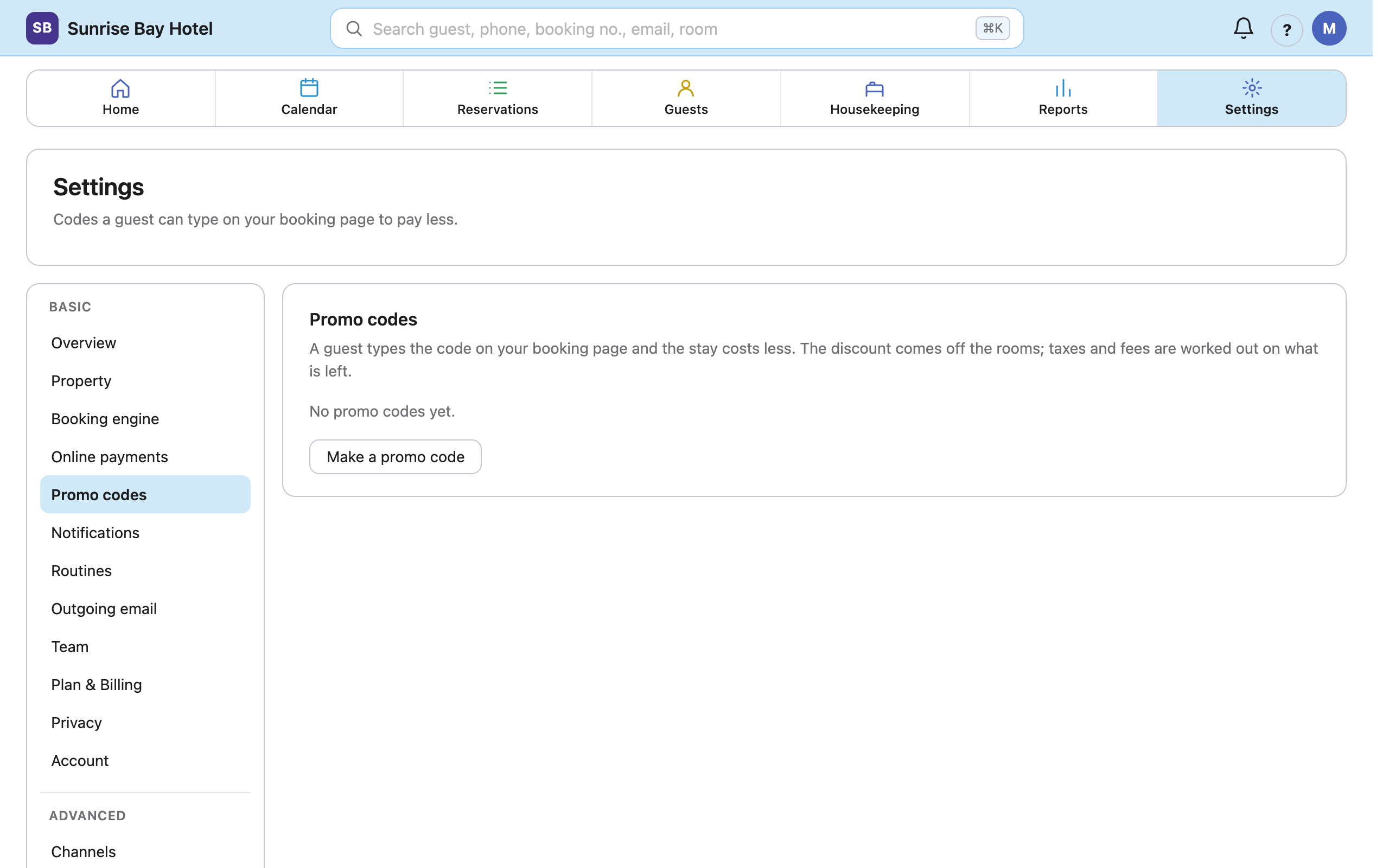
Under Promo codes choose Make a promo code. A guest types the code on your booking page and the stay costs less. Give it 3 to 20 letters or digits, such as SUMMER10; capitals do not matter. You can set a percentage or an amount, the dates it works for, the minimum number of nights and how many times it can be used. The discount comes off the rooms; taxes and fees are worked out on what is left.
#Good to know
- Your booking page takes bookings only for rooms you have opened in the calendar. Close a day there and guests cannot book it.
- A booking made on your page appears in Reservations at once. You can also be emailed when one arrives: see Hotel settings.