#Availability and prices in the calendar
Updated Nov 21, 2026
The calendar is where you tell Antero how many rooms you sell and at what price, day by day. Open it from Calendar at the top.
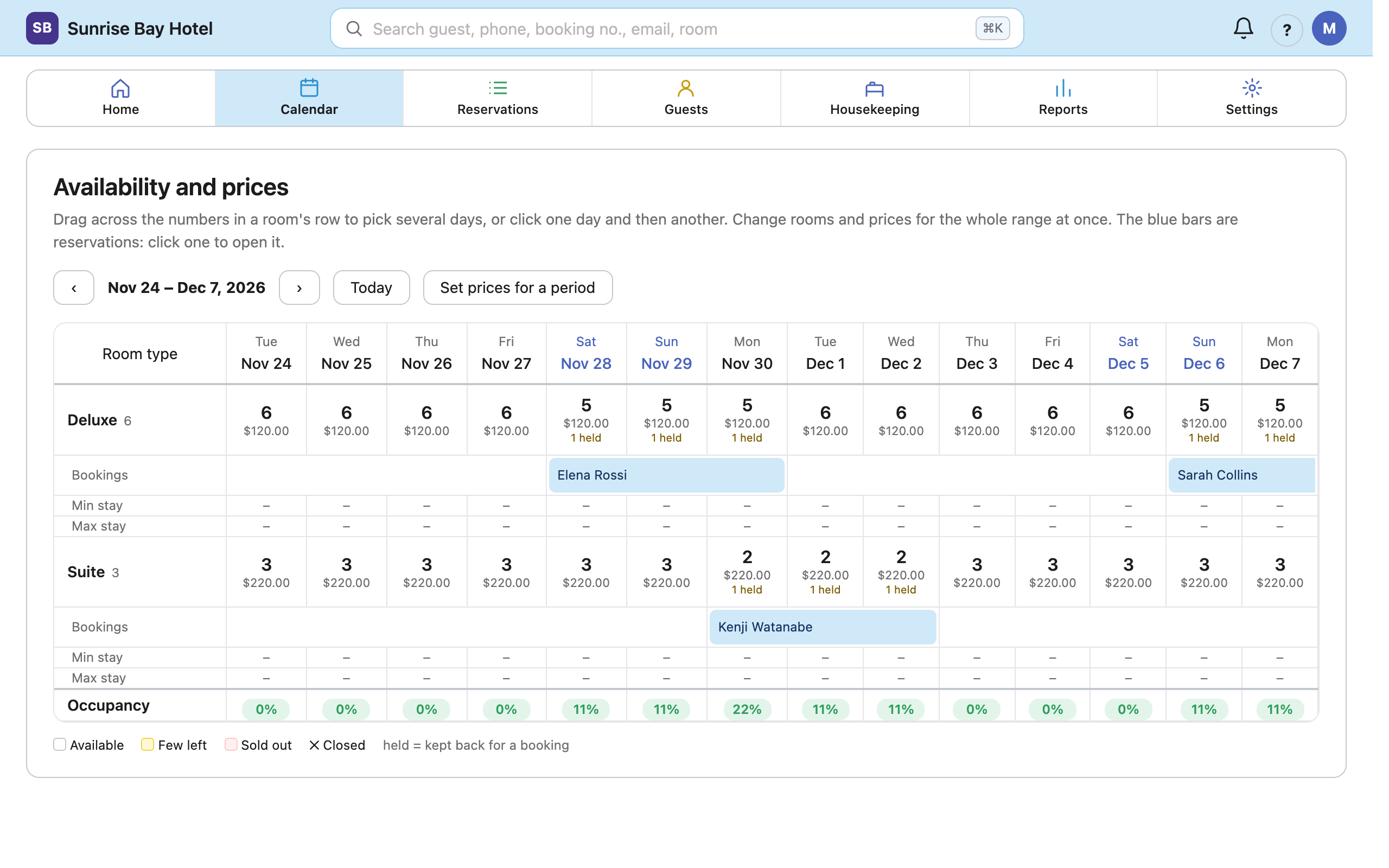
#Reading the calendar
Each room type has a block of rows:
- The big number is the rooms to sell that day. Under it is the price per night.
- held means a room is kept back for a booking that is not final yet (for example, a deposit that has not arrived). It cannot be sold twice. If you click a day and a number surprises you, choose Why is this 3? to see exactly how it was worked out.
- Bookings shows each reservation as a bar across its nights, with the guest's name.
- Min stay and Max stay show the shortest and longest stay allowed on a day. A dash means no limit.
- The Occupancy row at the bottom shows how full the hotel is each day.
The colours tell you at a glance: Available, Few left, Sold out and Closed.
Use the arrows to move earlier or later, and Today to come back to today.
#Change rooms and prices for a range of days
- Drag across days in the row of a room type to pick a range. Or click one day, then another day in the same row.
- A window opens with the range already filled in. You can change the dates in it.
- Fill in only what you want to change. A field you leave empty stays as it is:
- Rooms to sell: a whole number from 0 up to the rooms you have.
0means you sell none that day (you can use it to close a day). - Price per night: for example
120or120.50. - Min stay and Max stay: in nights. A dash (
-) means no limit.
- Rooms to sell: a whole number from 0 up to the rooms you have.
- Choose Apply.
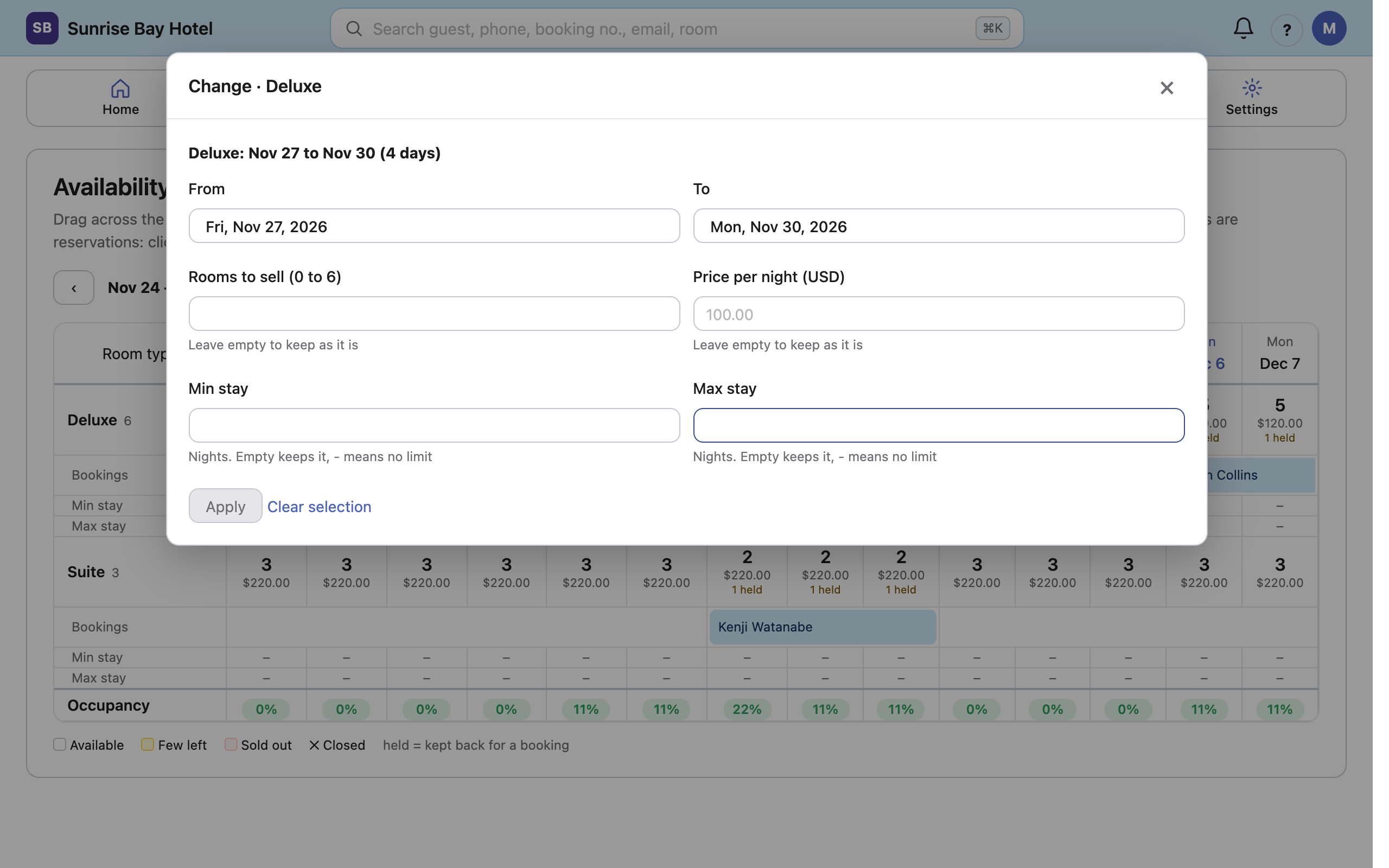
For about five seconds after you apply, an Undo button is there if you made a mistake. Choose Clear selection to drop your selection without changing anything.
If some of the days already have rooms held for a booking, the window tells you before you apply.
#Set a price for certain days of the week
For a weekend price or a high-season price, use Set prices for a period next to the arrows. You give one price for chosen days of the week over a period. Other days keep the price they have.
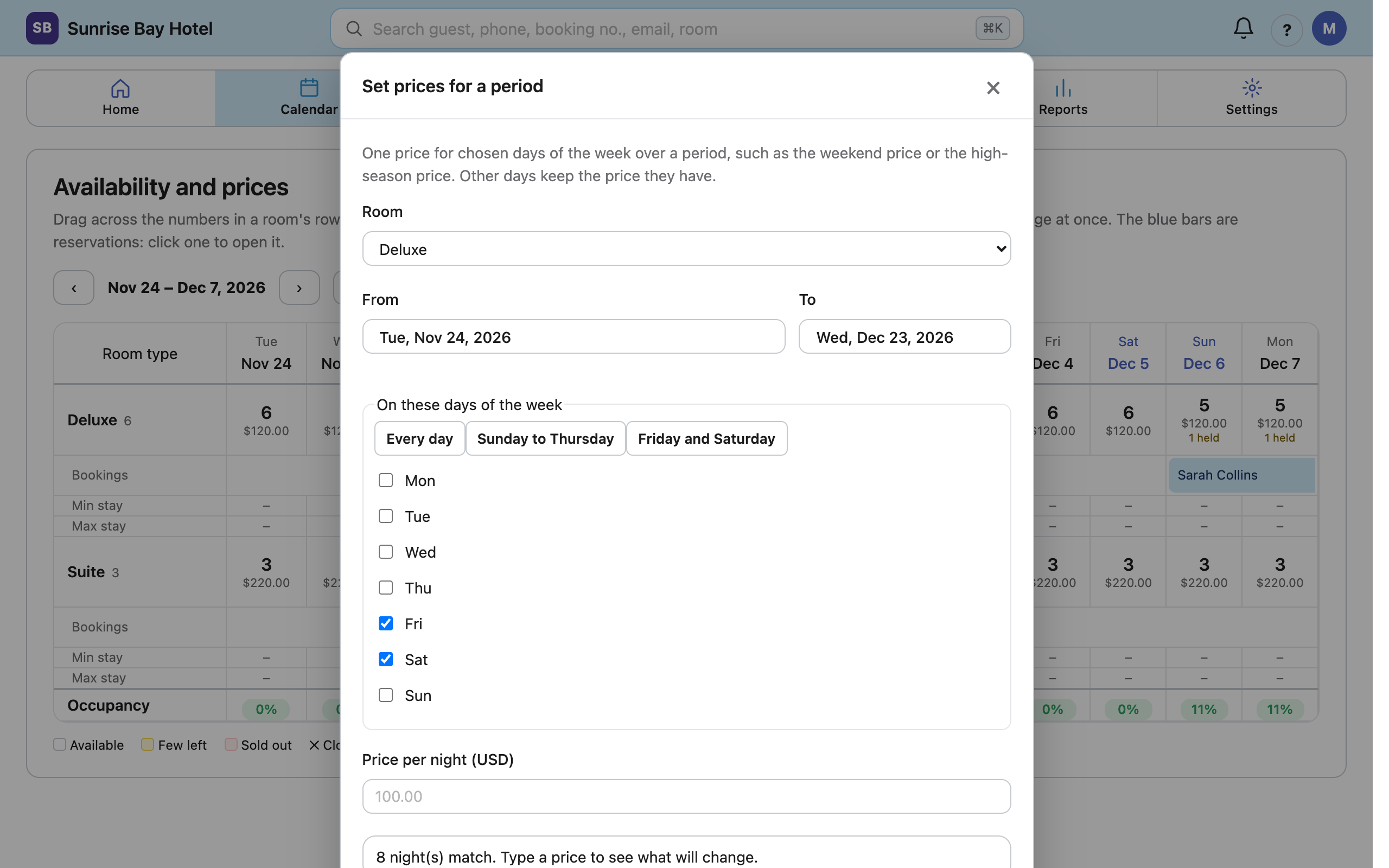
- Choose the room, the period, and the days of the week. There are shortcuts: Every day, Sunday to Thursday and Friday and Saturday.
- Type the price. A line under the form says what will happen, for example "Deluxe will cost $150.00 a night on 12 nights".
- Choose Set prices.
A period can be at most a year long.
#Closing a day
On Antero Light you close a day by setting Rooms to sell to 0 for that day. Open it again by setting the number back.
#Good to know
- You can never sell more rooms than you have: the number is limited to the rooms of the room type.
- A reservation takes its rooms off sale by itself, whether you typed it in or a guest booked on your booking page. You do not need to lower the number yourself.
- When you cancel a reservation, its rooms go back on sale at once.