#Create your account and set up your hotel
Updated Nov 22, 2026
This takes about ten minutes. You can stop at any step and come back: the panel keeps your place.
#1. Sign in with an email link
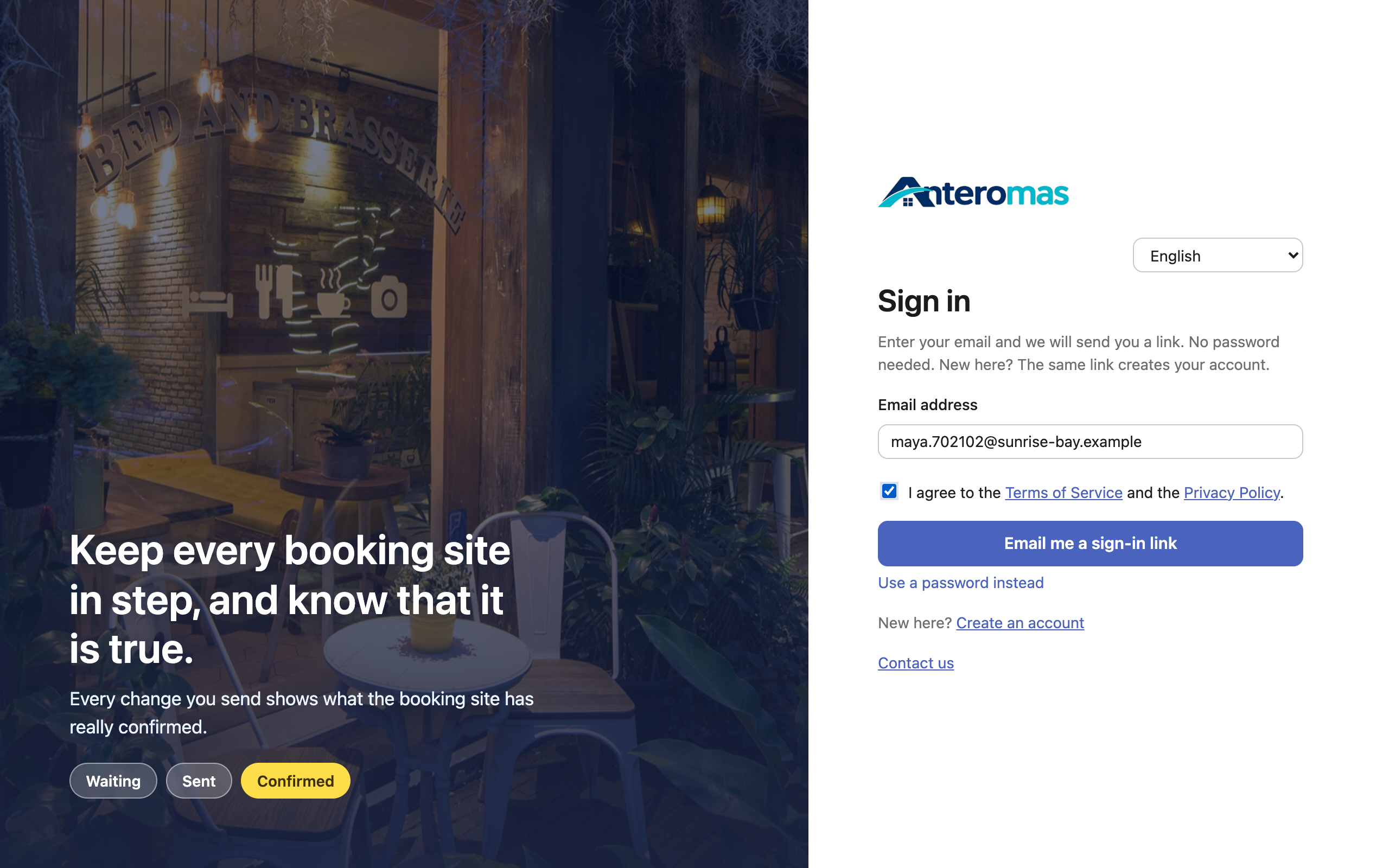
Open the panel and type your email address. Tick the box to agree to the Terms of Service and the Privacy Policy. Then choose Email me a sign-in link. There is no password to invent.
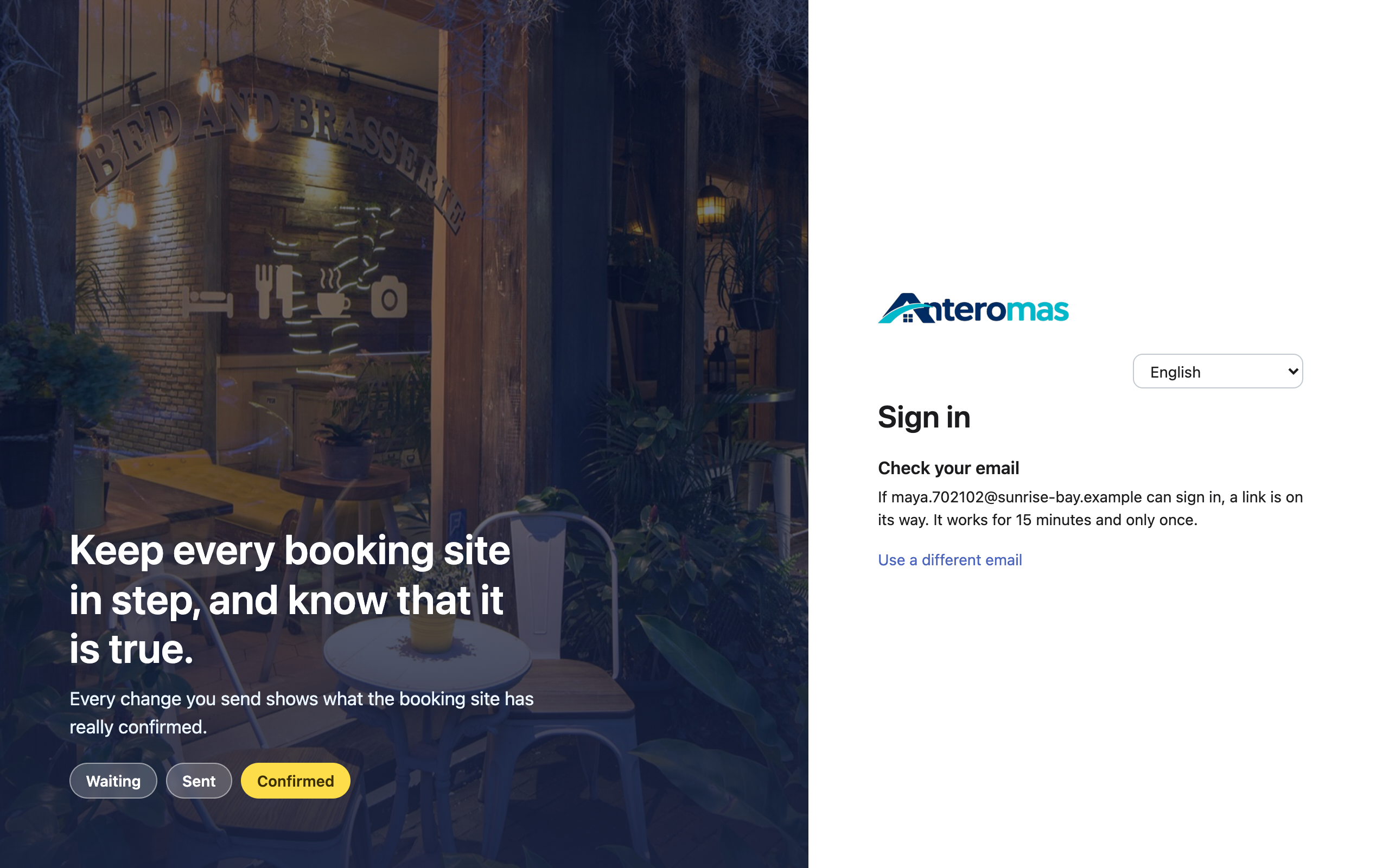
A message tells you to check your email. The link in it works once and for 15 minutes. If it has expired, ask for a new one.
Click the link in the email. If you are new, the same link creates your account. You can set a password later under Account if you prefer one; the emailed link always keeps working.
#2. Name your business
This is the account your hotels live in. Use your company or hotel name. You can change it later.
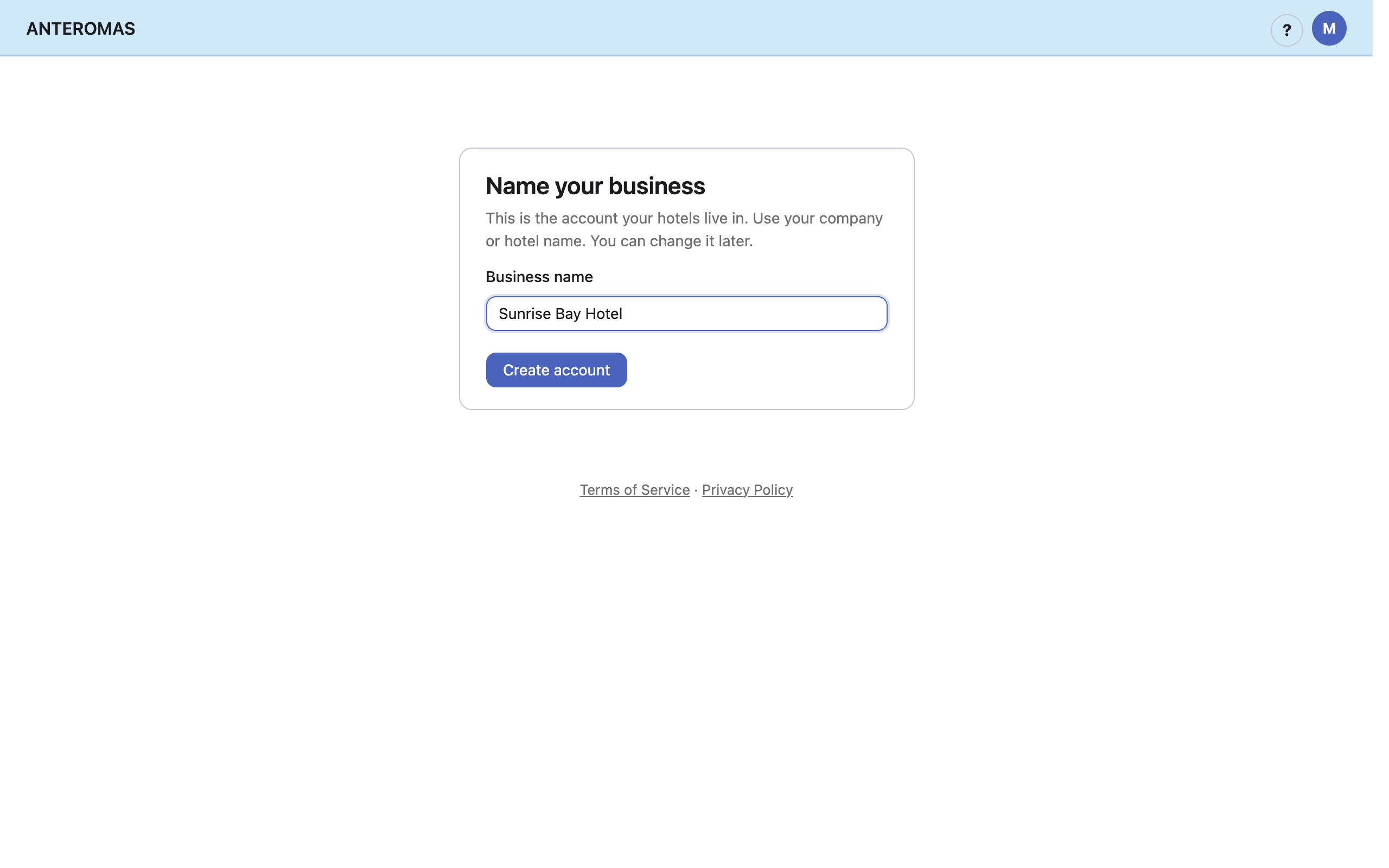
Choose Create account.
#3. The set-up guide
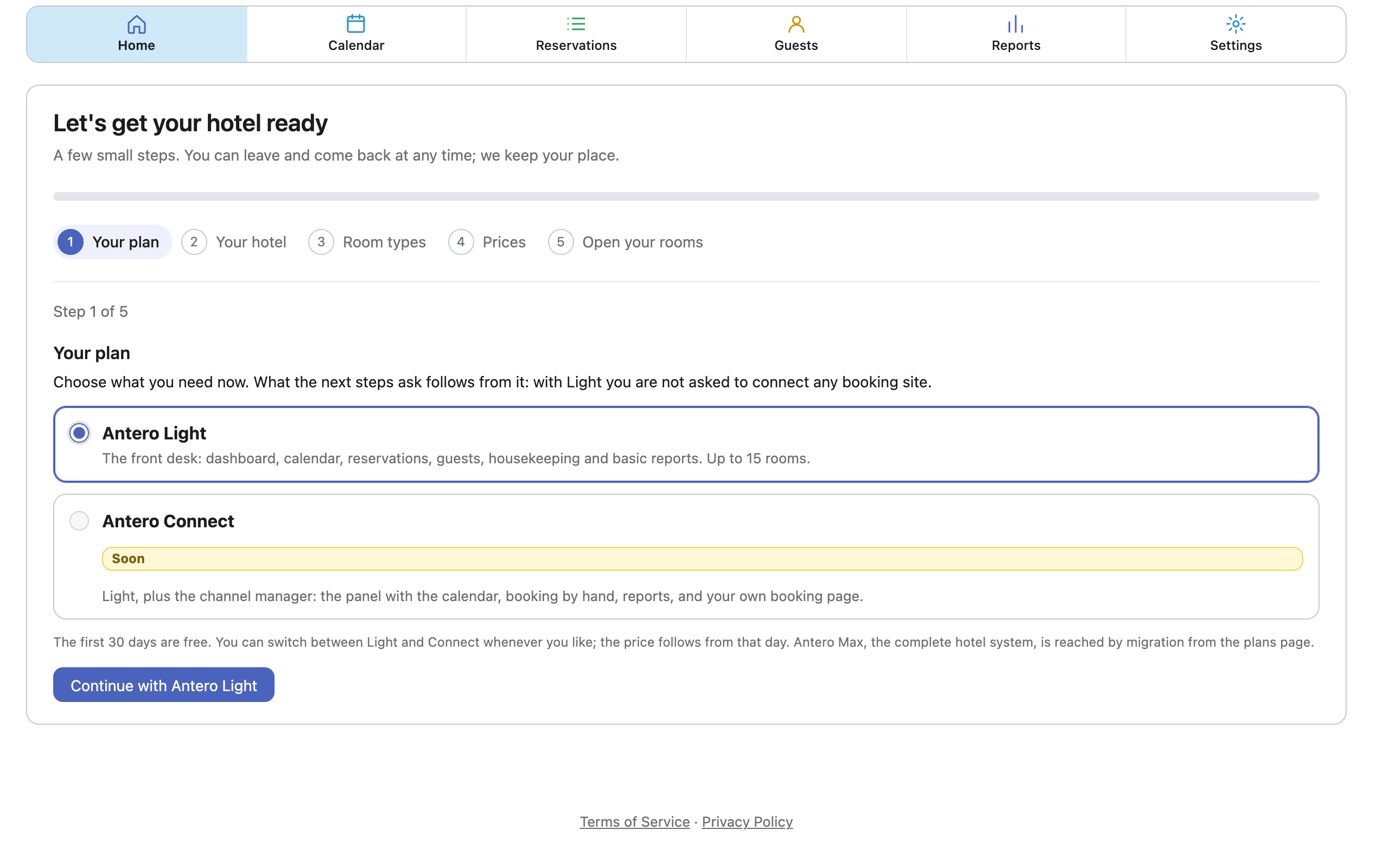
The Home page walks you through a short list. The steps you have done get a tick, and the bar at the top shows how far you are.
#Step 1: Your plan
Choose what you need now. Today that is Antero Light: the front desk, your calendar, reservations, guests and reports, for up to 15 rooms. The first 30 days are free.
#Step 2: Your hotel
Fill in:
- Hotel name: the name guests see.
- Time zone: where your hotel is. Antero uses it to know where a day starts and ends, so pick the right one (for example
Asia/Jakarta). - Currency: the currency of your prices. You cannot change it after the hotel is created, so choose with care.
- Who decides how many rooms are free?: keep I set it here unless you already use hotel software that counts your rooms. If you do, see Connecting your own hotel software.
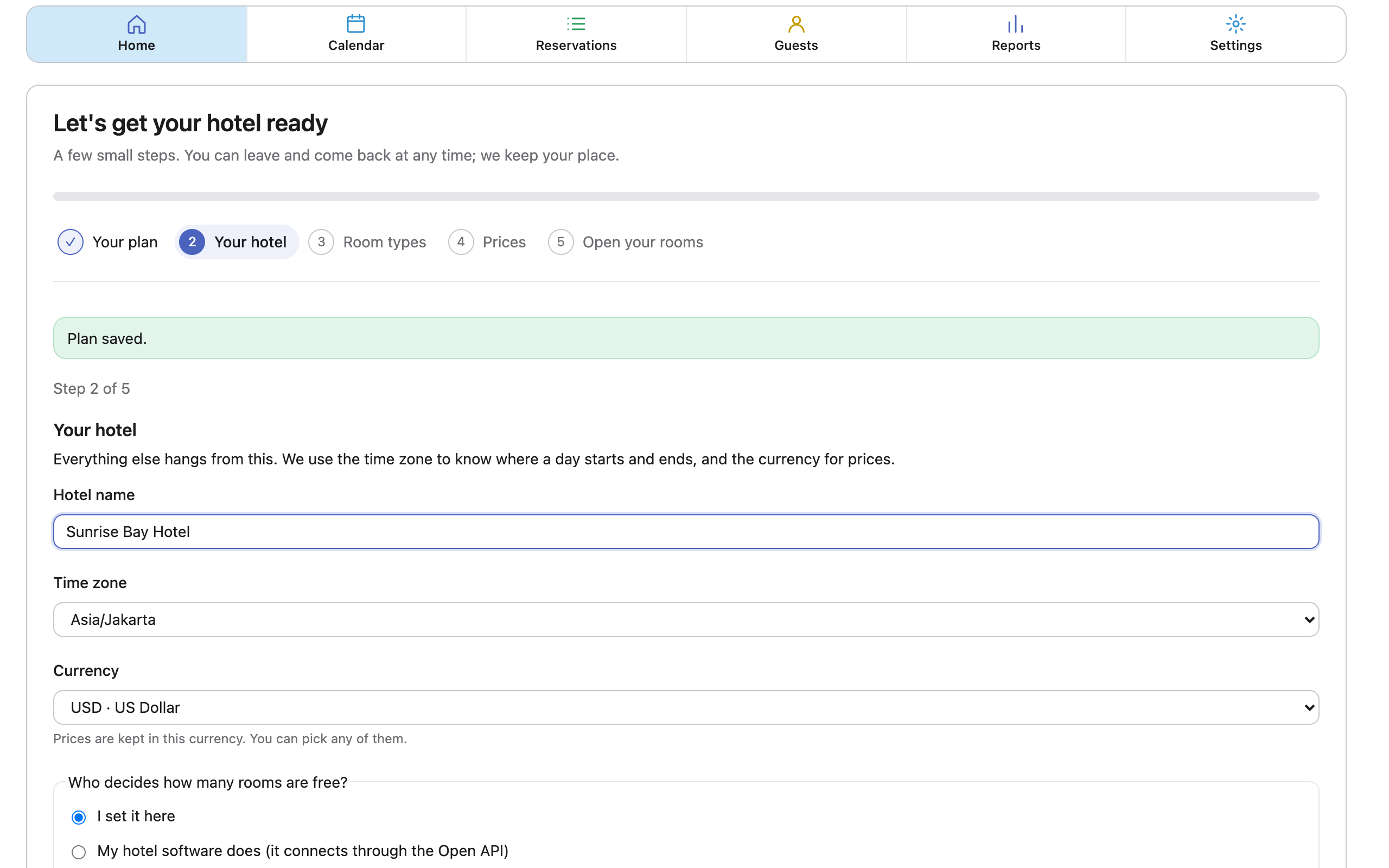
Choose Save hotel.
#Step 3: Room types
A room type is a group of identical rooms you sell, like “Deluxe” or “Suite”. Say how many of each you have.
Type the name of each room type and how many you have. Choose Add a room type for another row, or Fill in an example to see how it looks. Then Save room types.
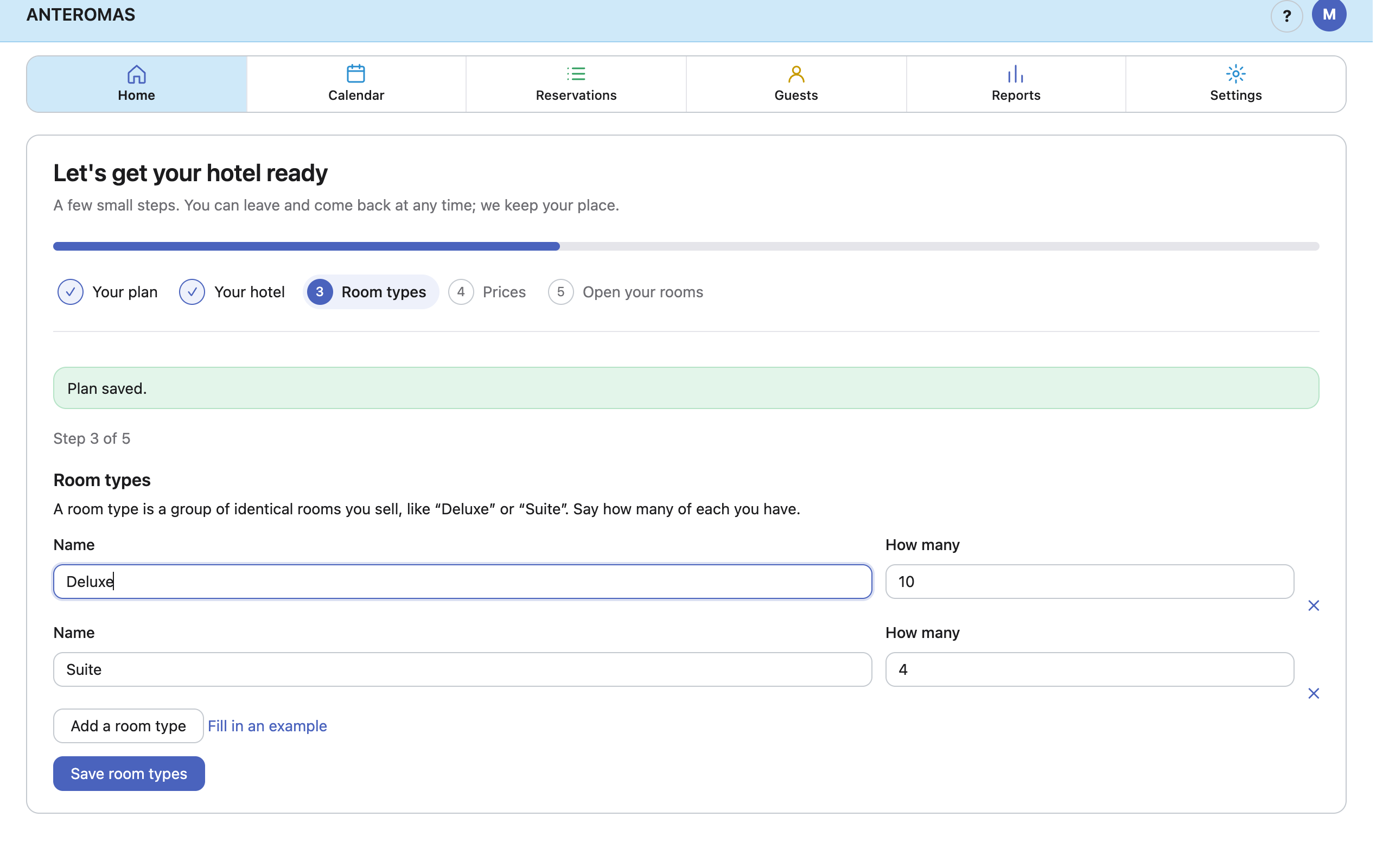
You can add, rename and remove room types later in Settings, Property.
#Step 4: Prices
Give each room type a price per night. We set it for the next 12 months; you can change any day later.
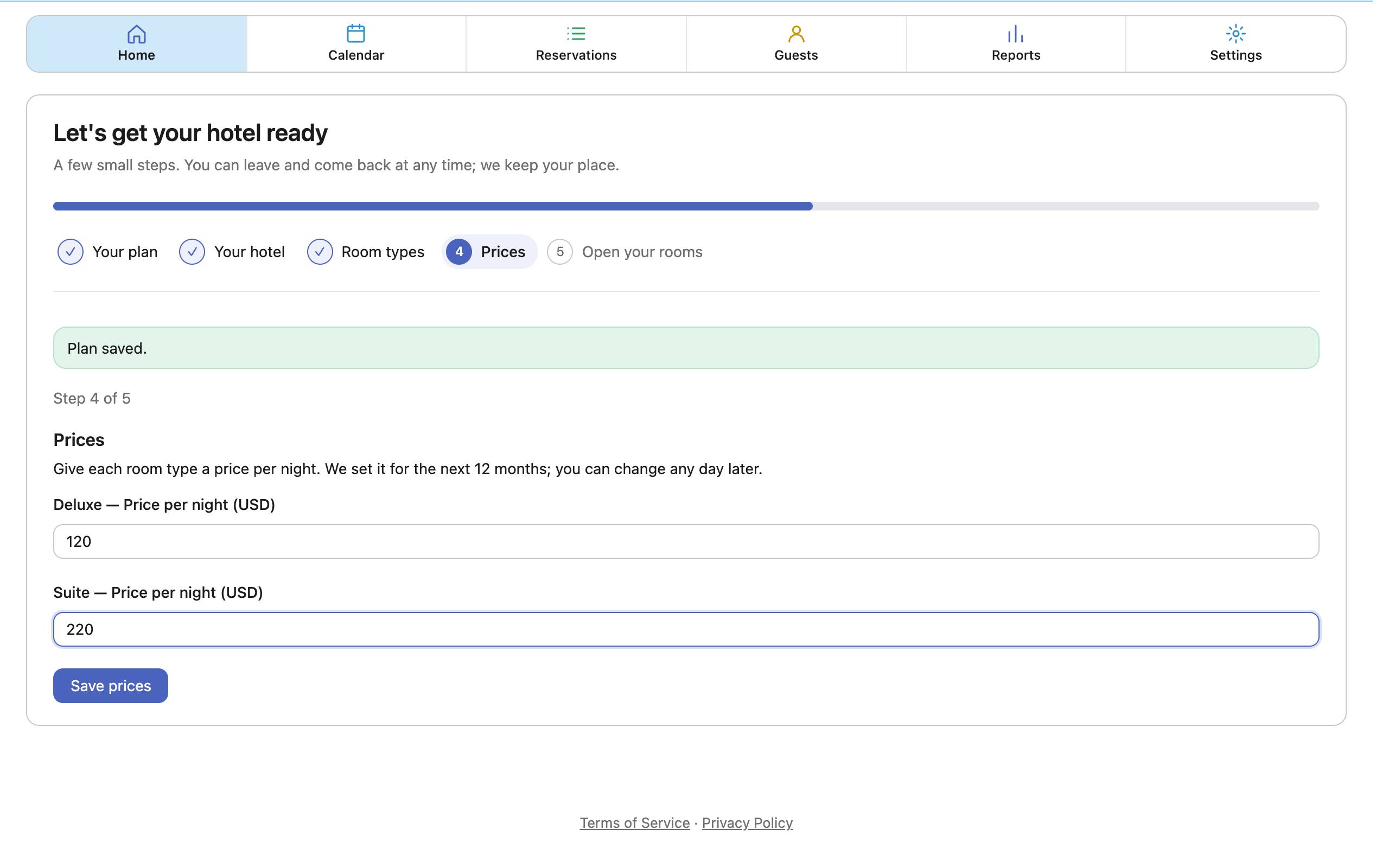
Type a price for each room type and choose Save prices. Prices are plain numbers in your hotel's currency, such as 120 or 120.50.
#Step 5: Open your rooms
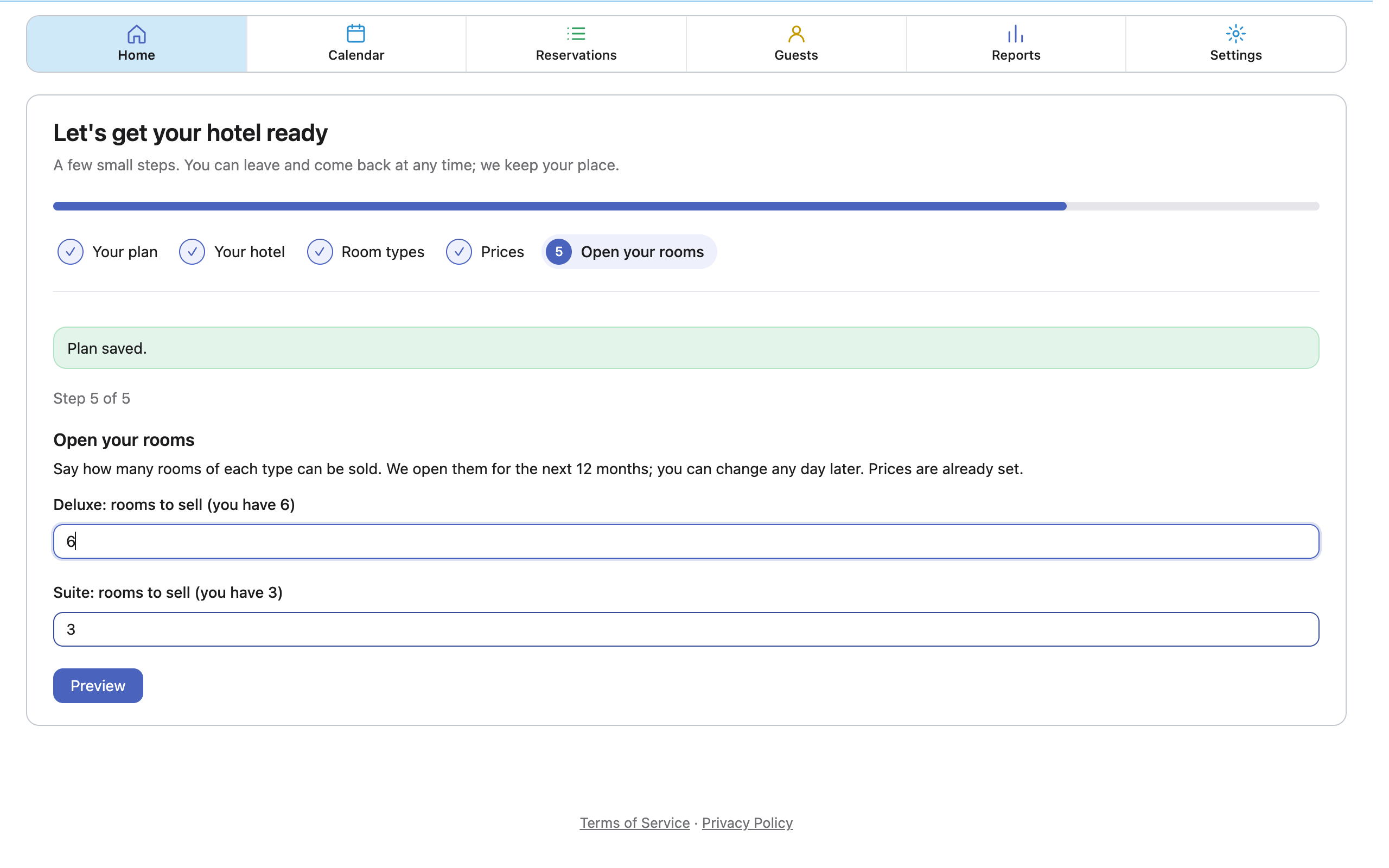
Say how many rooms of each type can be sold. We open them for the next 12 months; you can change any day later. Prices are already set.
Type how many rooms of each type can be sold (never more than you have). Choose Preview to see what will happen, then Open these rooms.
#4. Your dashboard
When the five steps are done, Home becomes your dashboard.
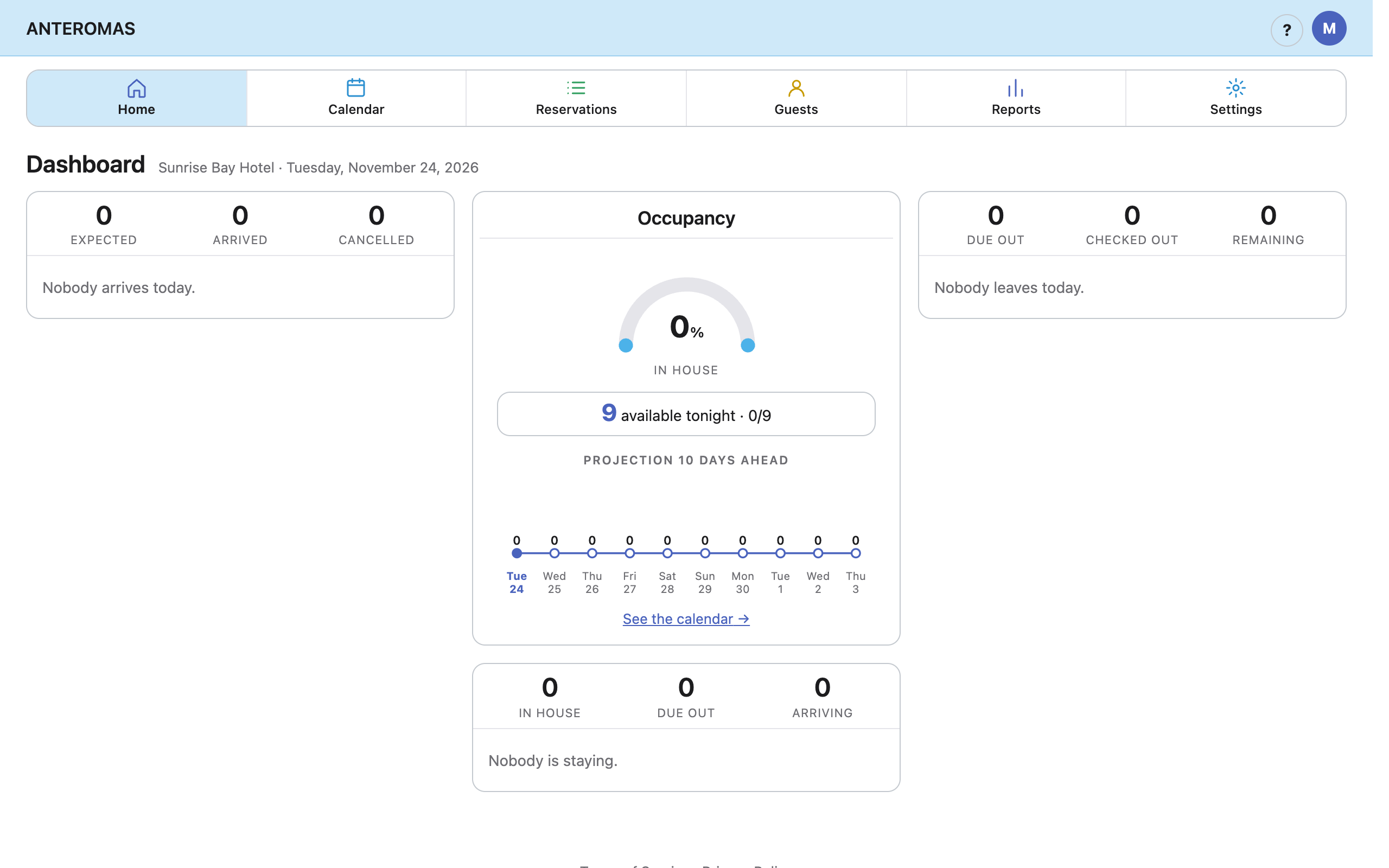
You are ready to take reservations. Next: Put your rooms and prices in the calendar.
#If something goes wrong
- The link says it has expired or was used. Ask for a new one on the sign-in page. Each link works once.
- No email arrives. Look in your spam folder, and check the address for typing mistakes.
- You chose the wrong currency or time zone. The time zone can be changed in Settings, Property. The currency cannot; write to us through ? and we will help you start again.