#Dashboard, guests and reports
Updated Nov 21, 2026
#The dashboard
Home is your dashboard once set-up is finished. It answers the questions you ask every morning.
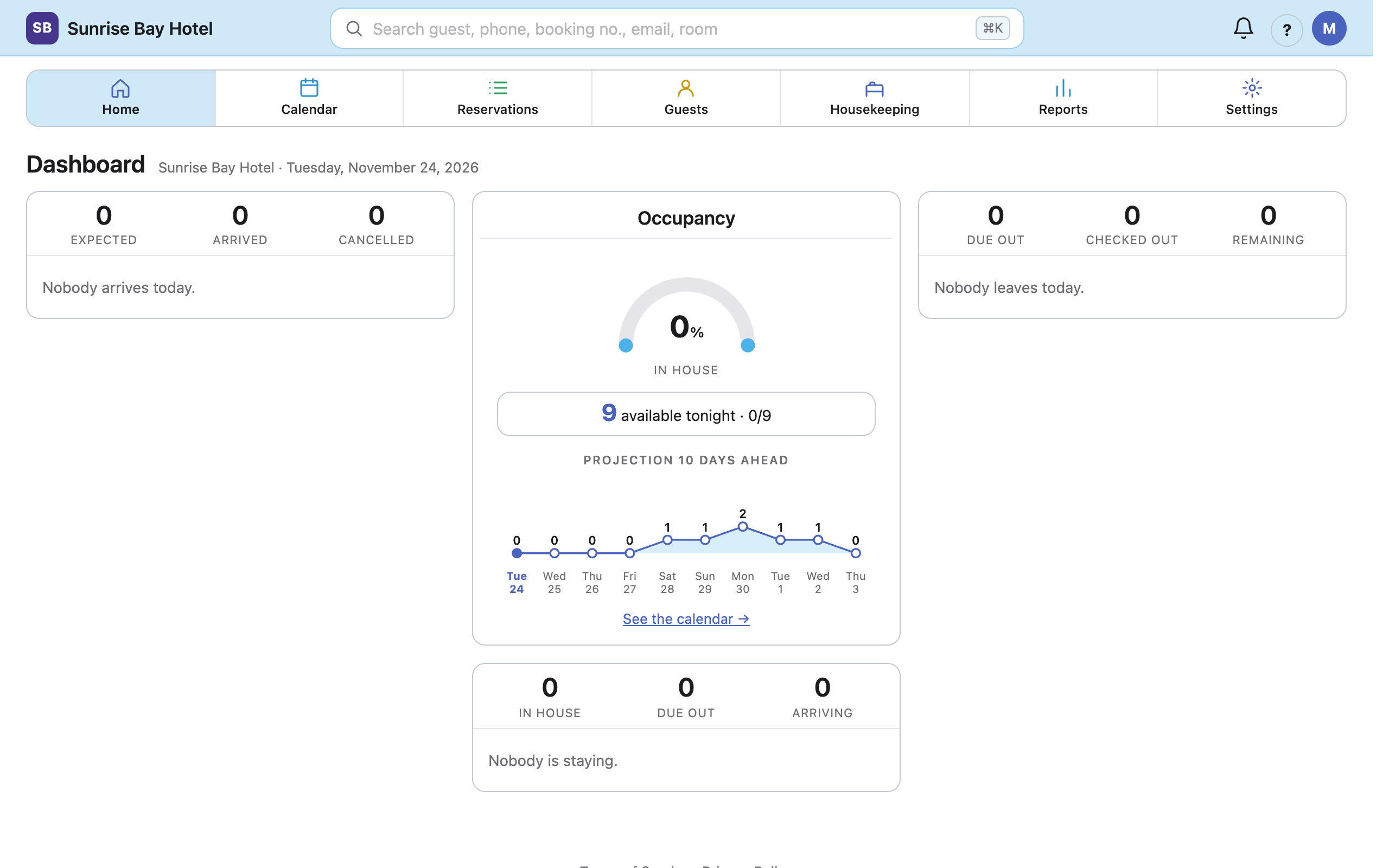
- Expected, Arrived and Cancelled: today's arrivals at a glance. Under them you see who is arriving, or "Nobody arrives today.".
- Occupancy and In house: how full you are tonight and how many rooms are still available.
- Projection 10 days ahead: the next ten days as small bars, so you see a busy weekend coming.
- Due out, Checked out and Remaining: who leaves today, and who has already left.
- Arrivals and departures have buttons: Check in, No show and Checkout. Use them at the front desk as guests come and go. When you check a guest in you can give them a room number at the same time.
- Needs attention: a short note when something needs you, with a link to your inbox.
If you have more rooms than your plan allows, the top of the page says so in plain words and links to the plans.
#Guests
Guests lists everyone who has booked or stayed, told apart by email address. A guest who booked three times appears once, with their stays counted.
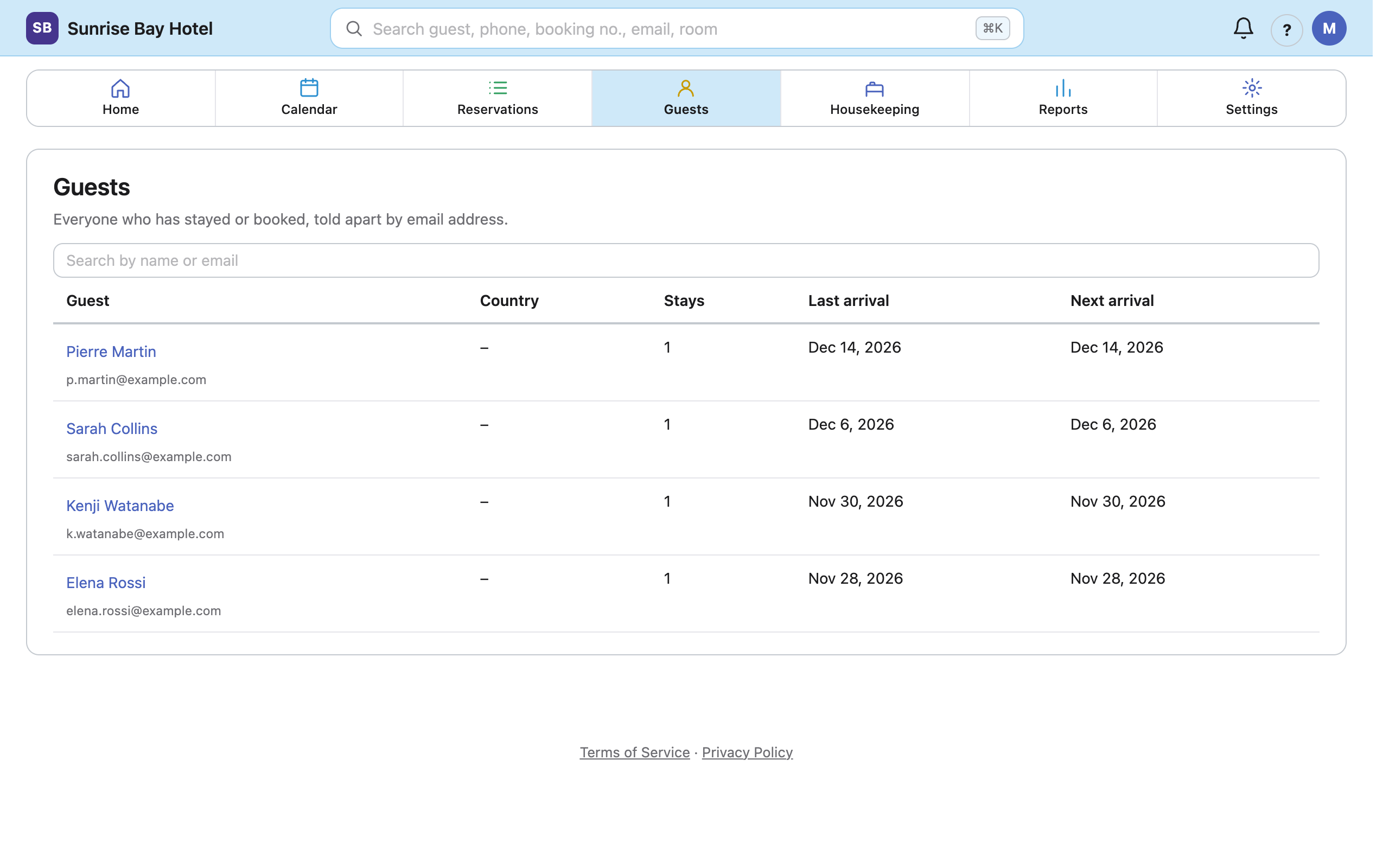
- Search by name or email.
- Each row shows the guest's country, how many stays, the last arrival and the next one.
- Guests appear here as soon as a booking with an email address comes in. A booking without an email address cannot be matched to a person, so it is not listed; the page tells you how many there are.
#Identity and the registration card
Click a guest to open their page. Under their stays you find Identity: the kind and number of the identity document, the nationality, the date of birth, and a photo of the document.
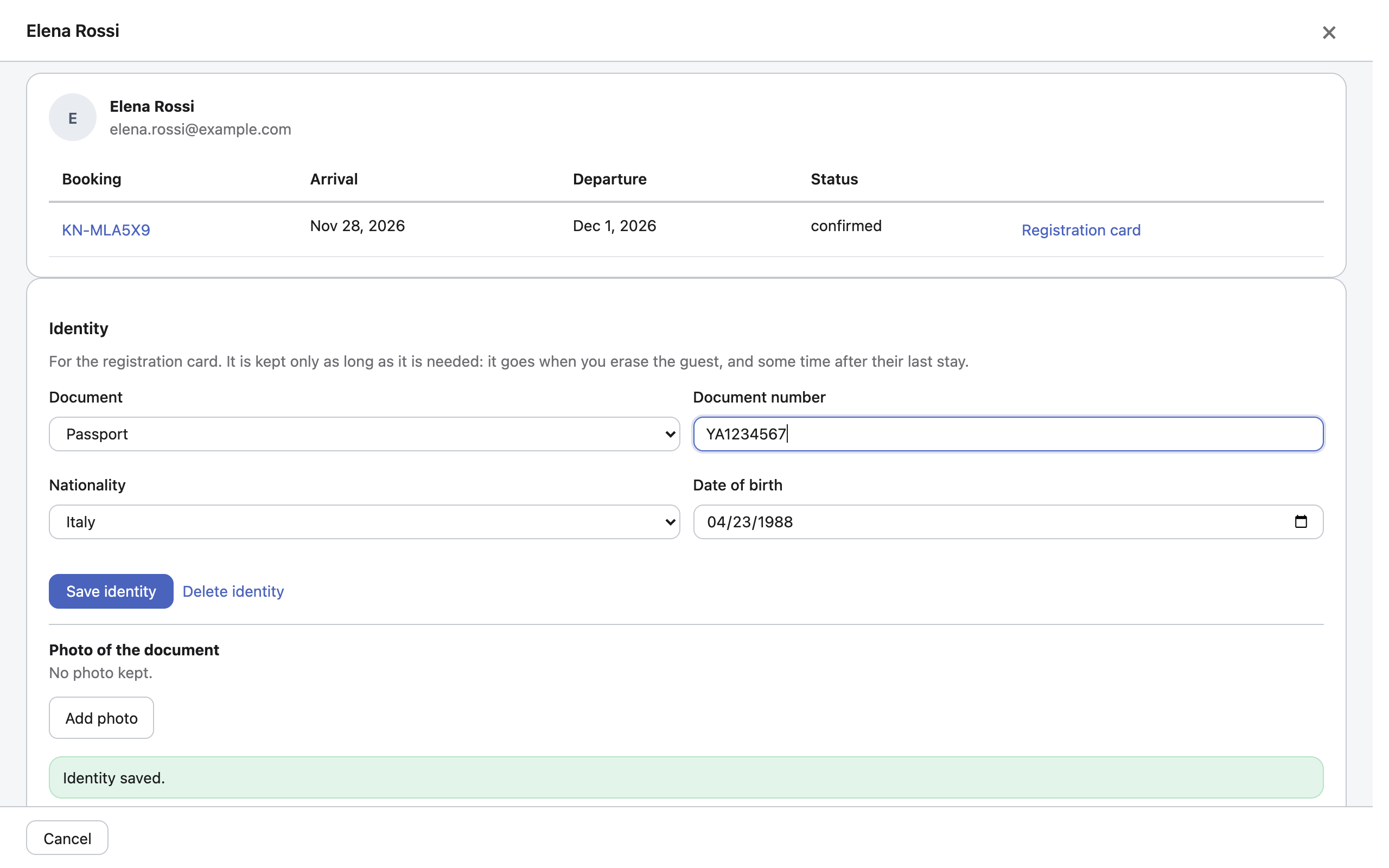
- Choose the Document (passport, ID card, driving licence or other) and type its number, the nationality and the date of birth. Choose Save identity.
- To keep a photo of the document, choose Add photo and pick a picture from your computer or phone. It is made smaller for you.
- View photo opens the photo only when you ask for it. Every time someone looks at it, the hotel's history records who and when (never whose).
The photo is encrypted before it is stored, so a copy of the database alone shows no document. For the registration card. It is kept only as long as it is needed: it goes when you erase the guest, and some time after their last stay. By default an identity is removed 90 days after the guest's last stay.
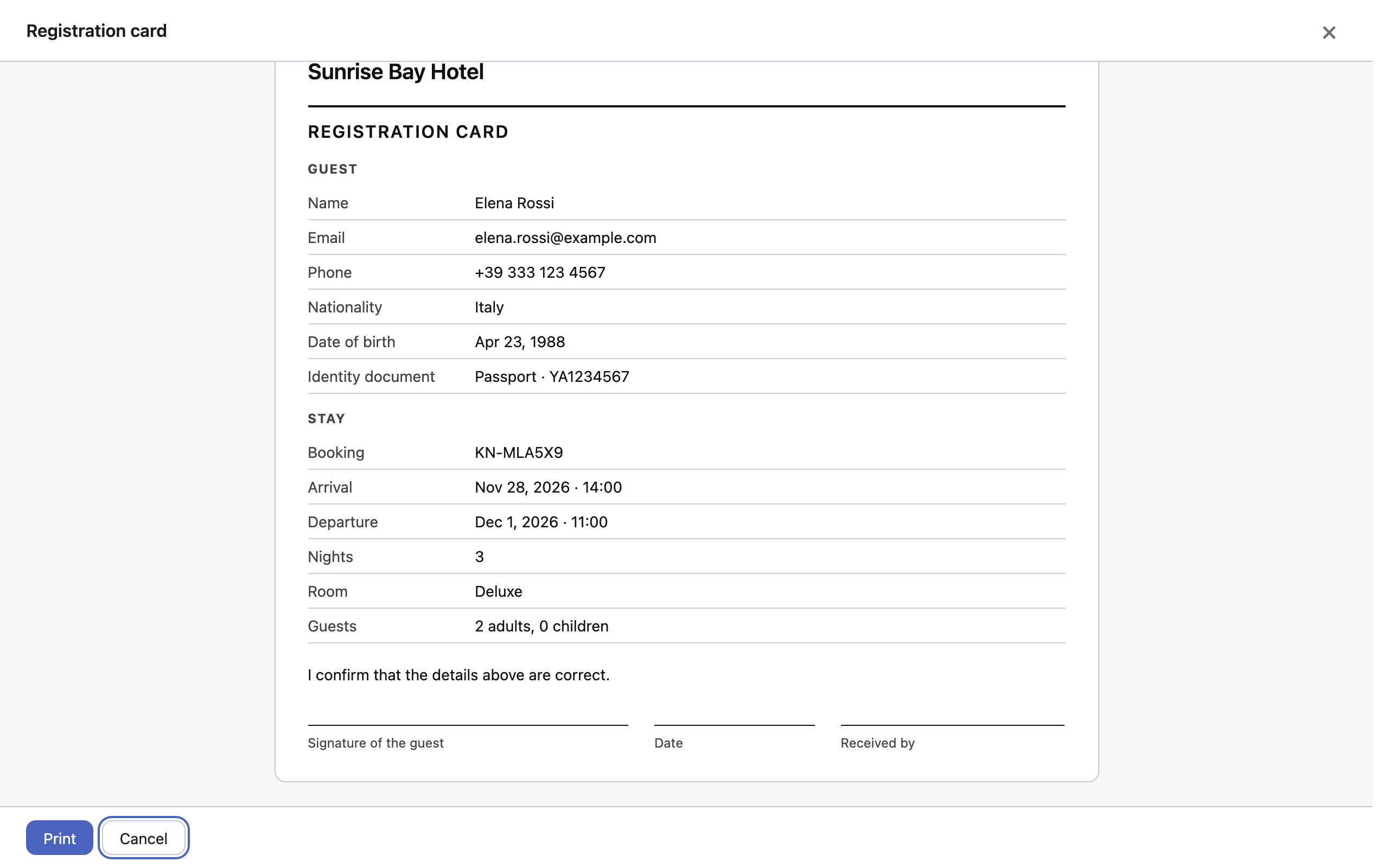
Choose Registration card on a stay (in the guest's page, or on the reservation) to make the registration card: the hotel, the guest, the identity document and the stay, with a line to sign. What you typed in the identity box goes onto the card at once. Choose Print to print the card only. If the guest has no email address, no identity can be kept, but the card can still be printed and filled in by hand.
To erase a guest who asks you to, see Help, support and your data. Erasing a guest also removes their identity and photo, unless a stay is still to come.
#Reports
Reports shows how full the hotel is, what it earns and where the bookings come from.
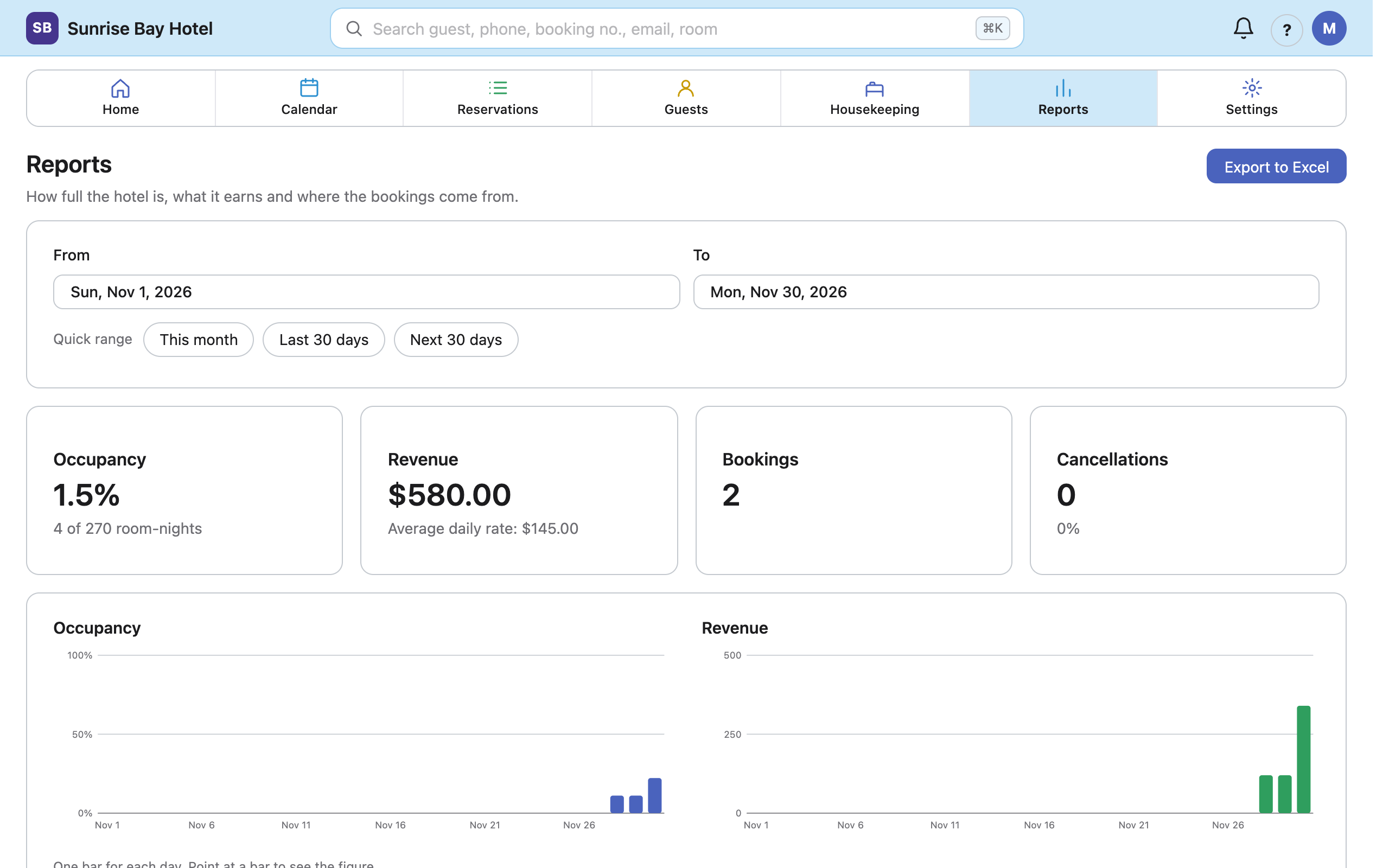
- Choose the period with the two date fields, or use the shortcuts: This month, Last 30 days and Next 30 days.
- The top row gives Occupancy (how many of the room-nights were taken), Revenue, the average daily rate, the number of bookings and the share that were cancelled.
- The chart under it shows occupancy day by day. Point at a day to see the exact figure.
- Choose Export to Excel to download the figures as a spreadsheet.