#Taking and managing reservations
Updated Nov 21, 2026
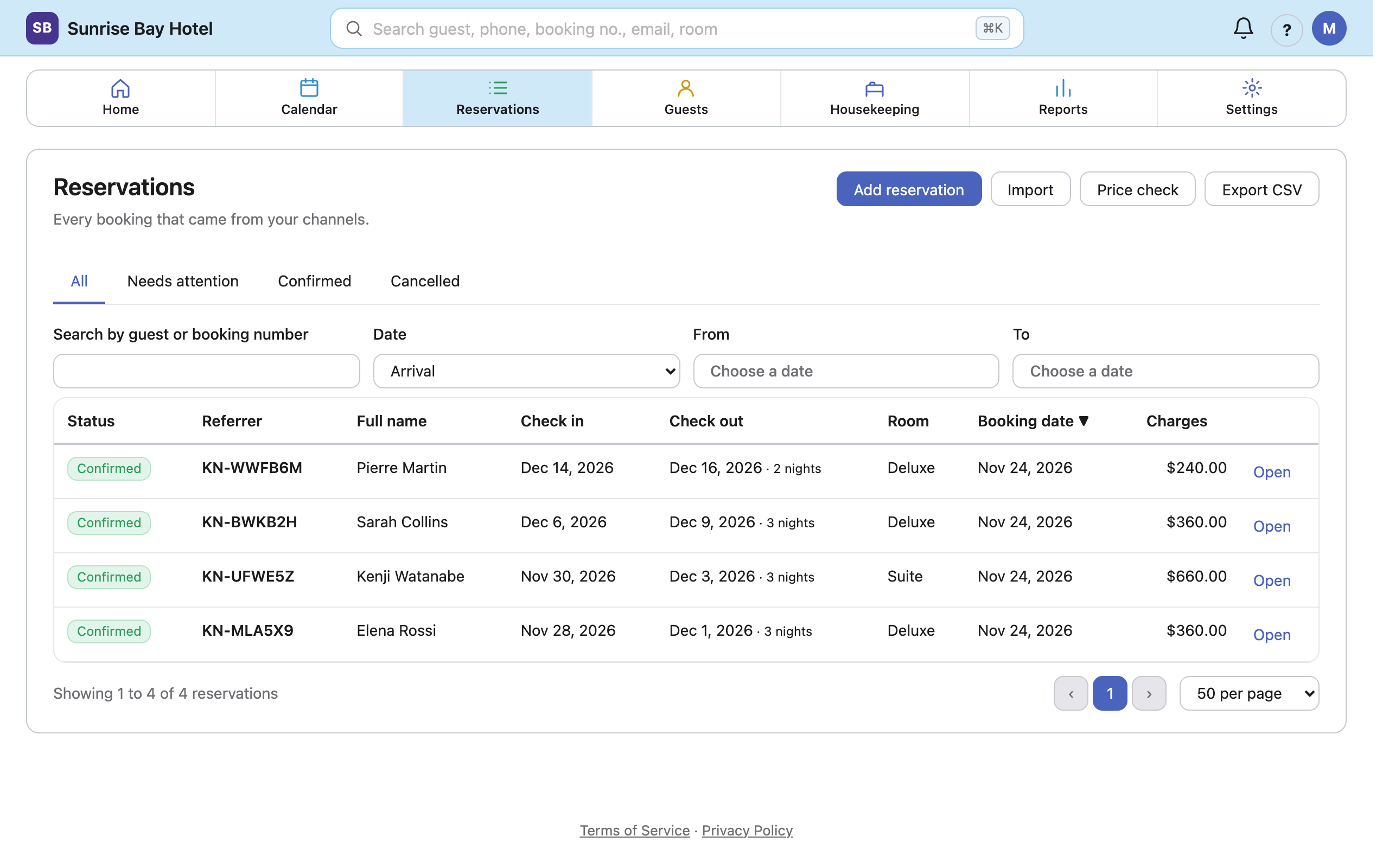
Reservations lists every booking: the ones you type in, the ones guests make on your booking page, and (when booking sites open) the ones that come from them.
#Find a reservation
- The tabs on top filter the list: All, Needs attention, Confirmed and Cancelled.
- Type in the search box to find a guest or a booking number.
- Use the date fields to show only the bookings that arrive in a period.
- Choose Open on a row to see everything about that booking.
#Add a reservation by hand
Use this for a guest who phones, writes, or walks in.
Choose Add reservation.
Under Stay, choose the Room type, how many rooms, the Arrival and Departure dates. The number of nights fills in by itself.
Under Guests, give the number of adults and children, the Guest name, an E-mail (so the guest can get a confirmation), the Country and the Phone with its country code, for example
+62 812 3456 7890.Under Payment, say how much the guest has already paid. A line under the buttons explains the choice you made:
- Not paid: Nothing has been paid yet. The guest pays at the hotel, or you record the payment on the reservation later.
- Deposit paid: The guest has paid part of the price. Type how much and how it was paid: it is recorded as a payment, and the rest stays owed.
- Paid in full: The guest has paid the whole price. It is recorded as a payment, so nothing more is owed.
For a deposit, type the Amount paid. For both paid choices, say How was it paid?: cash, card, bank transfer or other.
Leave Total price empty to use your rates; the form shows the total it will use.
Add a Private note if you want. Guests never see it.
Choose Save reservation.
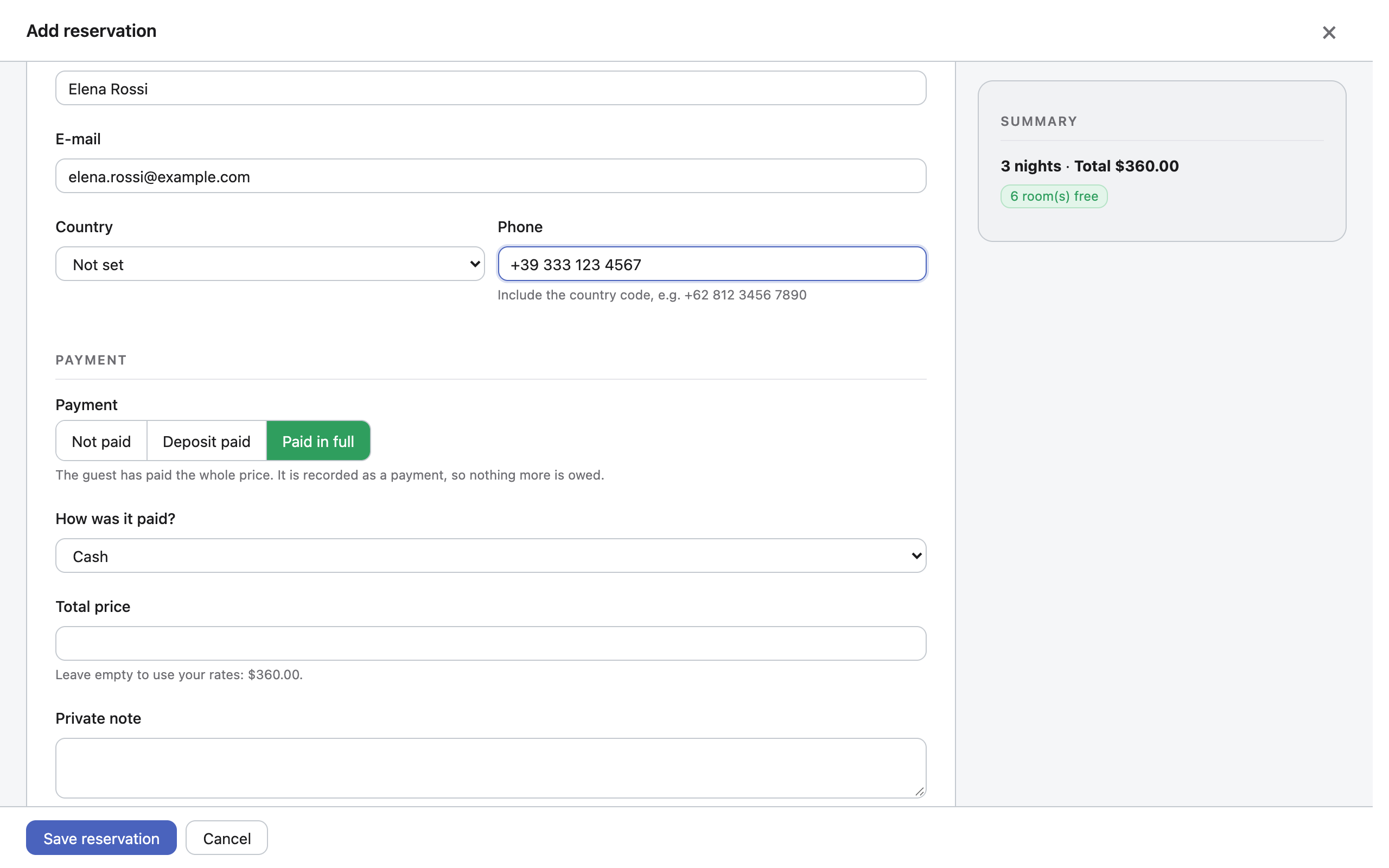
The Summary on the right shows the number of nights, the total and how many rooms are free. If no room is free on those nights, you are told before you save. The rooms come off sale at once.
#What you can do with a reservation
Open a reservation to see its page.
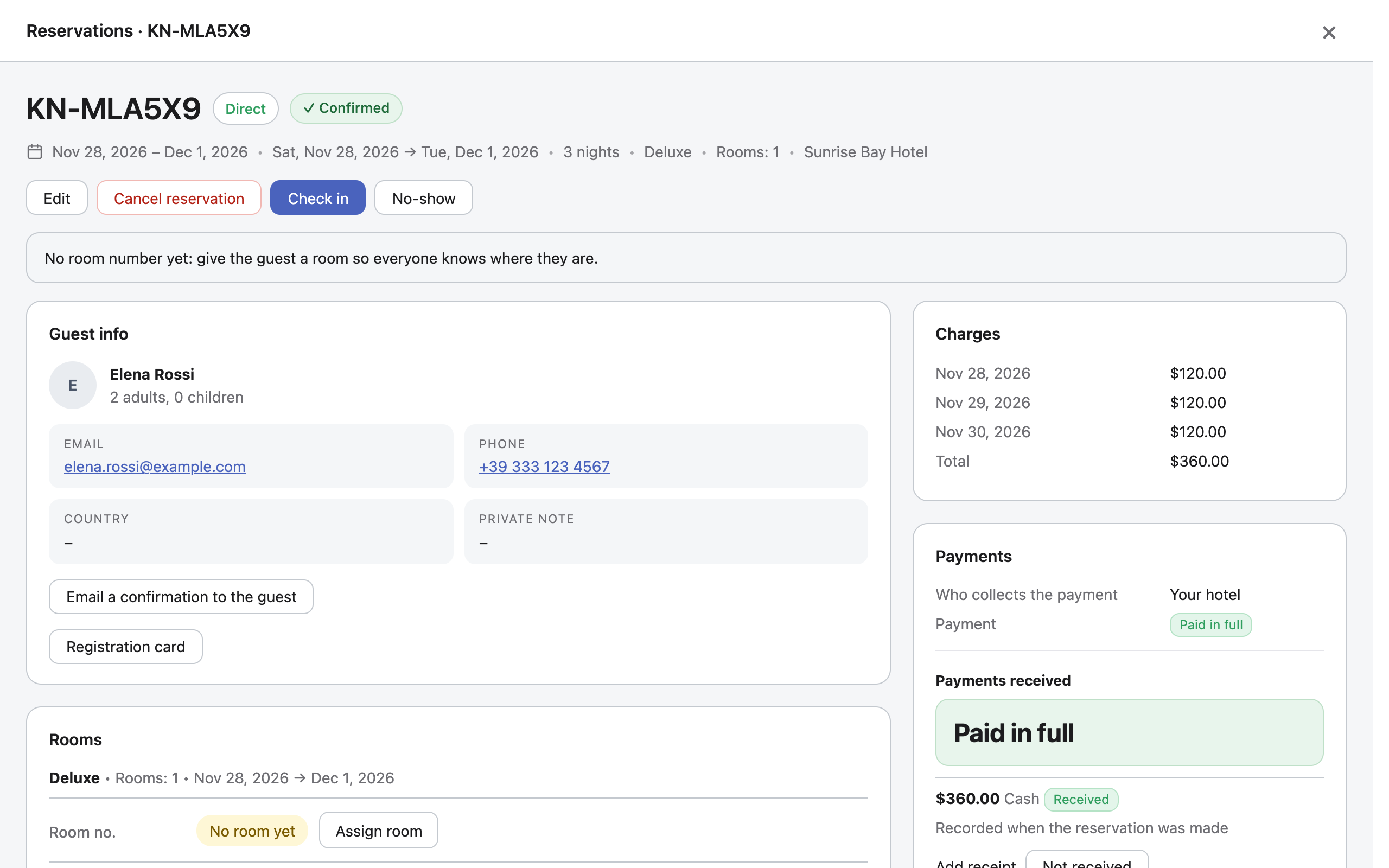
- Edit: change the same things you filled in when you added it: the dates, the room type, the guest's details, the payment and the price.
- Cancel reservation: after you confirm, the rooms go back on sale. The reservation stays in the list as cancelled.
- Check in: when the guest arrives. You can give a room number at the same time (see below).
- No-show: when a guest did not arrive.
- Email a confirmation to the guest: sends the guest a confirmation email.
- Registration card: the card the guest signs at the desk, with the identity document you keep for them. See Dashboard, guests and reports.
- Record a payment: when a guest pays (the rest at check-in, or a bank transfer you have seen arrive).
The Charges box lists the price of each night. The Payments box says who collects the payment and whether it is paid.
#Payments and what is still owed
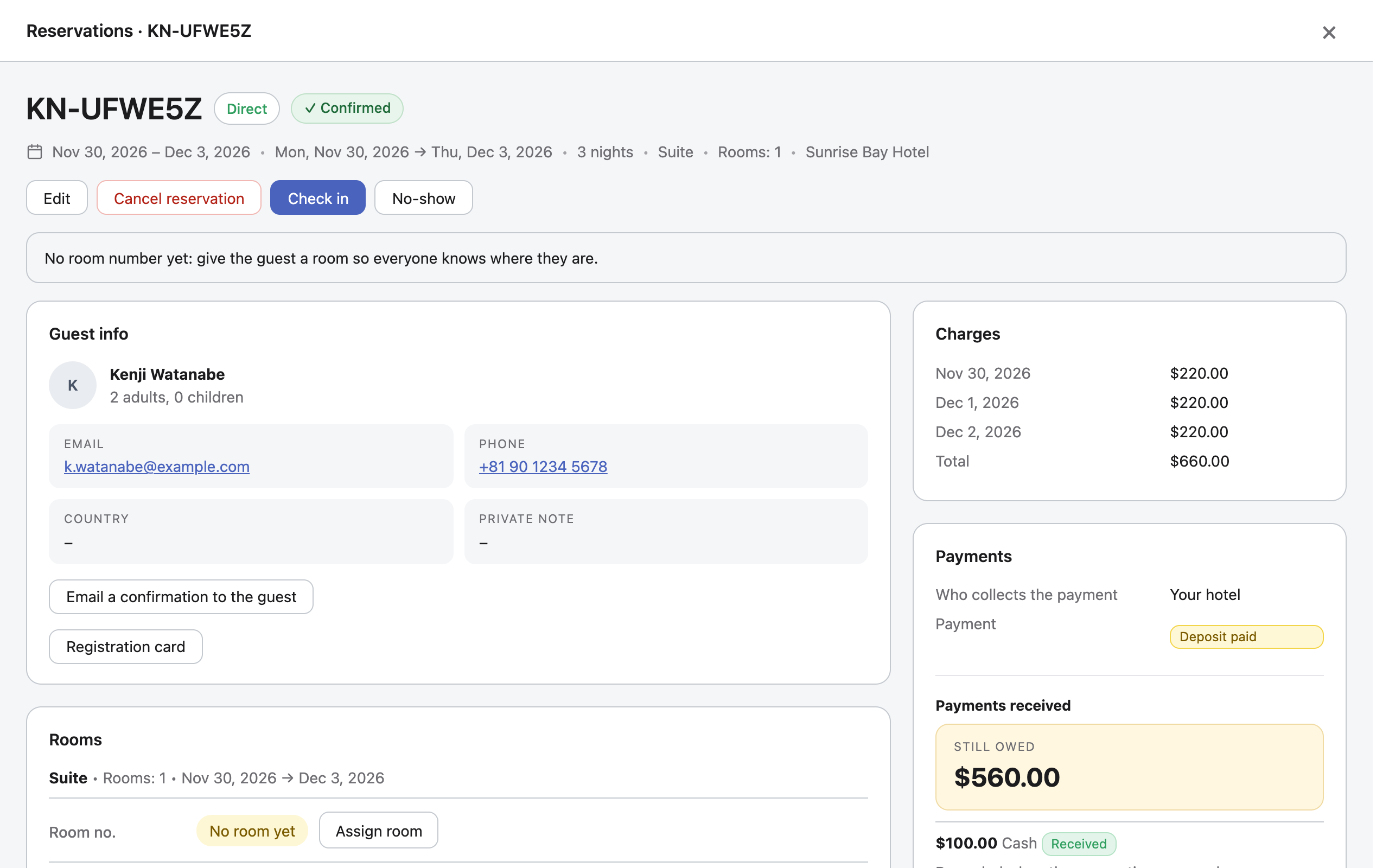
Antero does not move money; it keeps the record. Every amount you receive is written under Payments received on the reservation, with how it was paid, and the box works out what is Still owed: the total price minus the payments received. When the payments cover the price, the box says "Paid in full".
- When you add the reservation: the amount you typed (or the whole price, for "Paid in full") is recorded as a payment at once.
- Later: choose Record a payment, type the amount, and say How it was paid. Cash and card count at once. A bank transfer can wait until you have seen the money in the bank: tick "The money is already in the bank", or confirm it later with Money received. You can keep a picture of the receipt with it.
- The label on the reservation (Not paid, Deposit paid, Paid in full) is worked out from the payments, so it always agrees with the box.
- A reservation that came from another system may only carry the label "Paid in full" with no payments recorded. The box then says: You marked this reservation as paid in full, so nothing is owed. No bank transfer is recorded here.
A reservation with a deposit lists the payment and says what is still owed:
A reservation not paid yet shows the whole price as still owed:
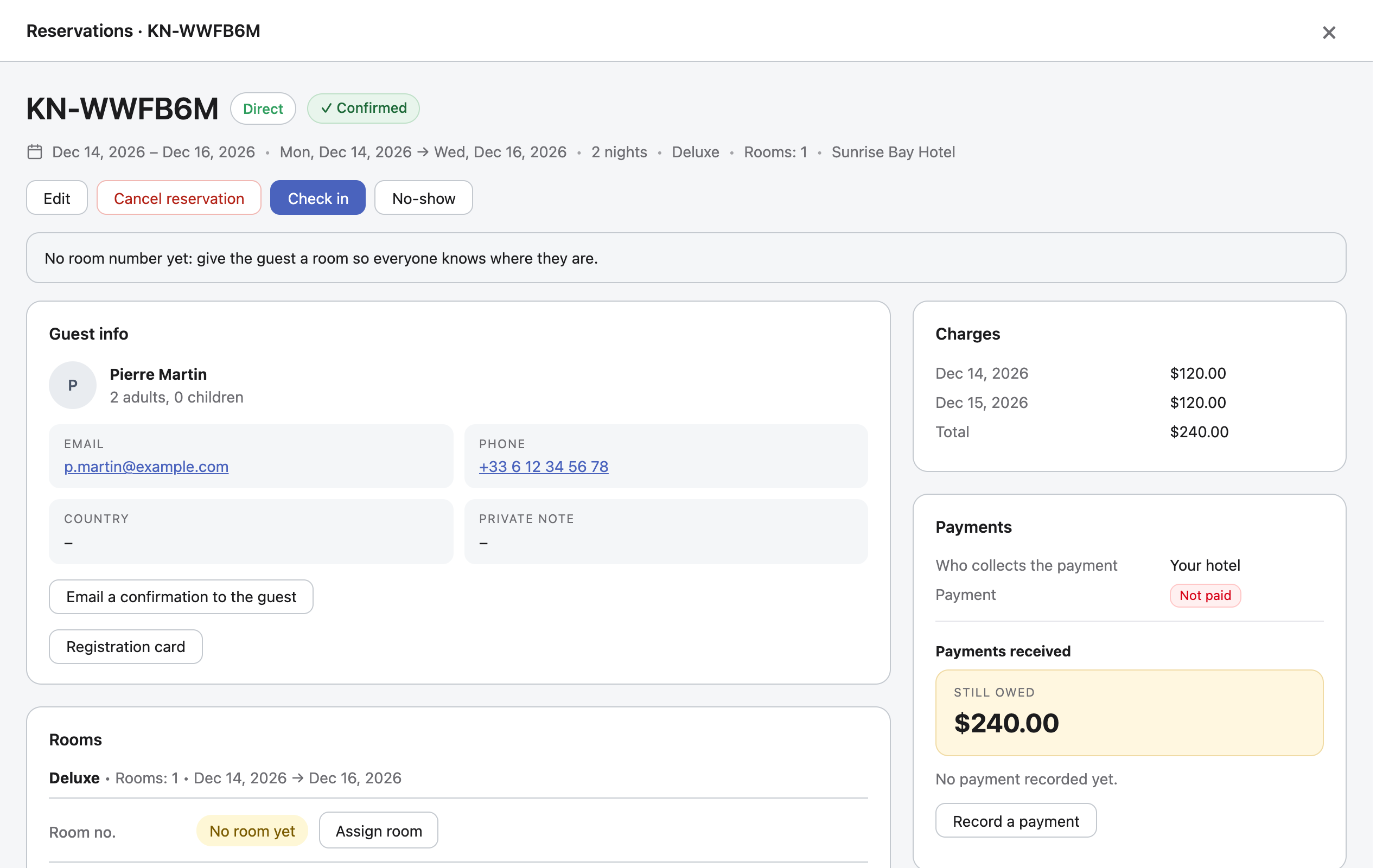
Before a guest checks out, the reservation warns you if it is not paid in full.
#Giving the guest a room number
Under Rooms you can Assign room. The real room numbers come from Settings, Property, Room numbers. Antero lists only the rooms free on every night of the stay, so the same room is never given to two guests on the same night. A guest who leaves on the 12th does not block the room for a guest who arrives on the 12th.
#Moving a stay
To move a stay to other dates or another room type, use Edit and change the dates or the room type, then save. The rooms of the old dates go back on sale and the new ones come off sale.
#Check a price before you promise it
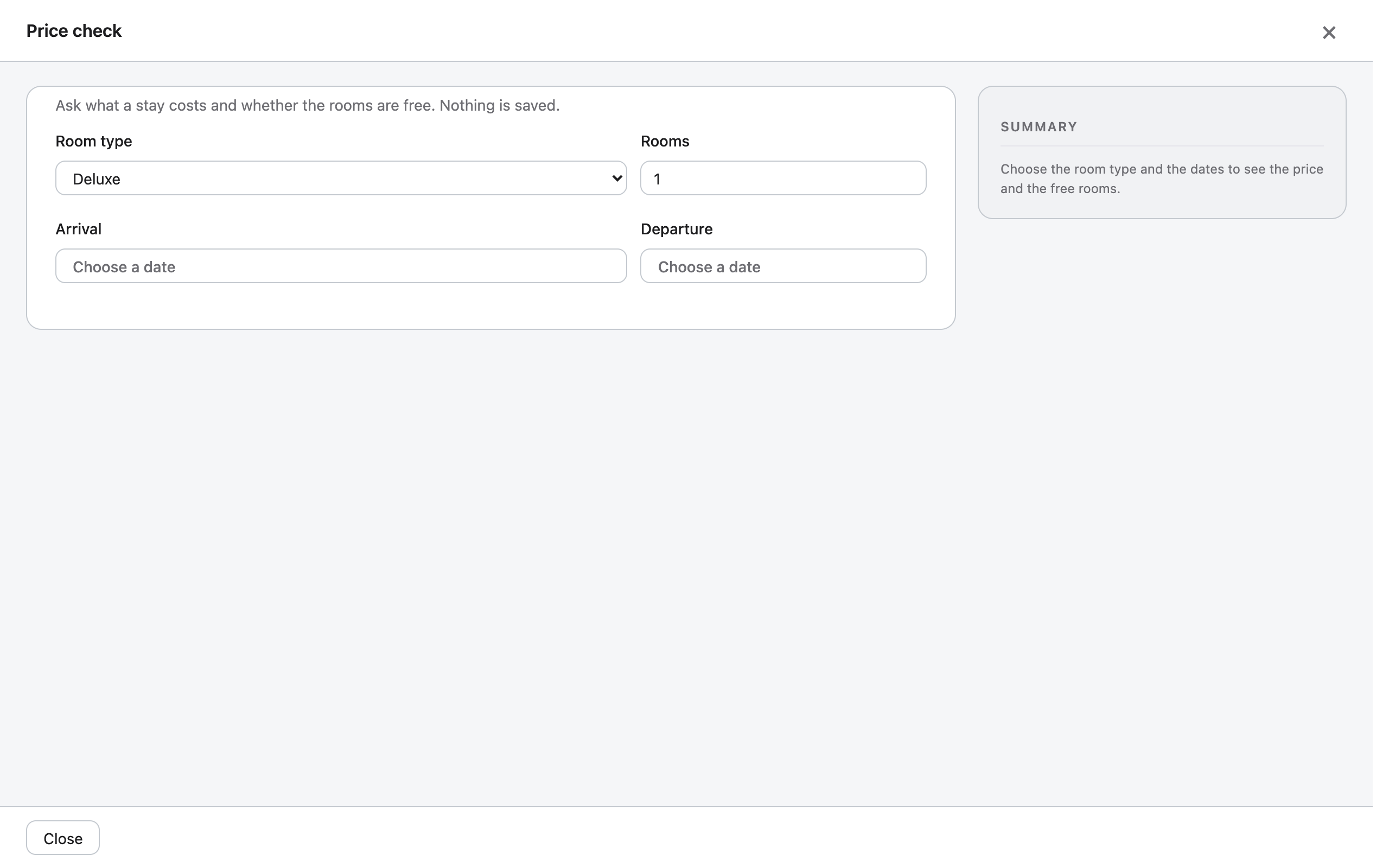
Choose Price check, pick the room type, the number of rooms and the dates, and the summary on the right shows what the stay costs and whether the rooms are free. Nothing is saved.
#Bring in reservations from another system
If you used another system before, choose Import. You pick the file, say which column is what, and check the result before anything is saved. Nothing is changed until you confirm.
#Export your reservations
Choose Export CSV to download the list as a CSV file that opens in Excel or Google Sheets.
#Good to know
- A reservation that shows Needs attention is waiting for one more detail, such as a missing price. Open it and fill it in.
- Guest details are kept only as long as they are needed. See Help, support and your data.