#Hotel settings, notifications and team
Updated Nov 21, 2026
Everything about how your hotel is set up lives under Settings. The page is split in two: Basic, which is what most hotels need, and Advanced, for hotels that connect booking sites or their own software.
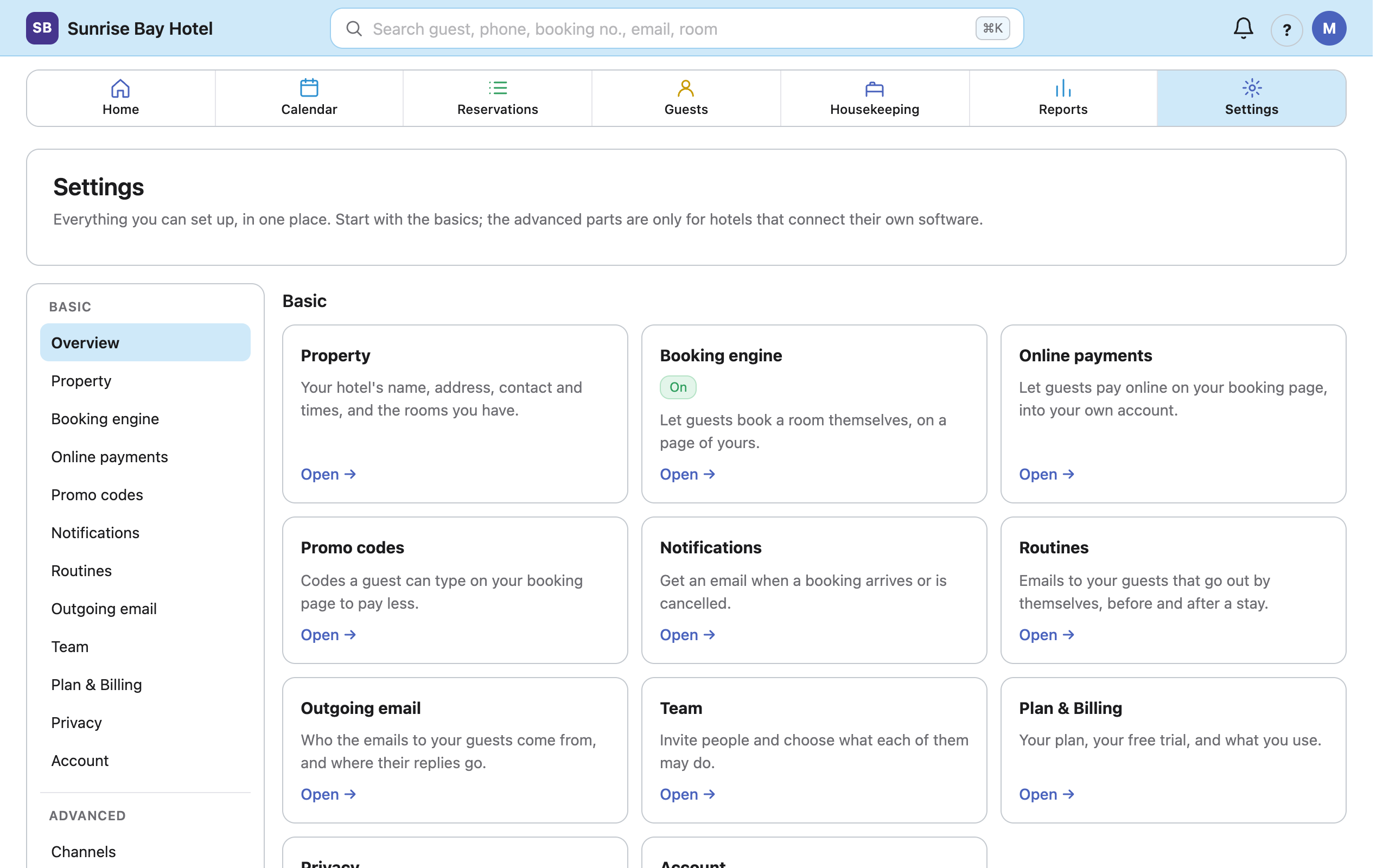
The list on the left takes you to each part. Each part is explained below.
#Property and rooms
Open Property.
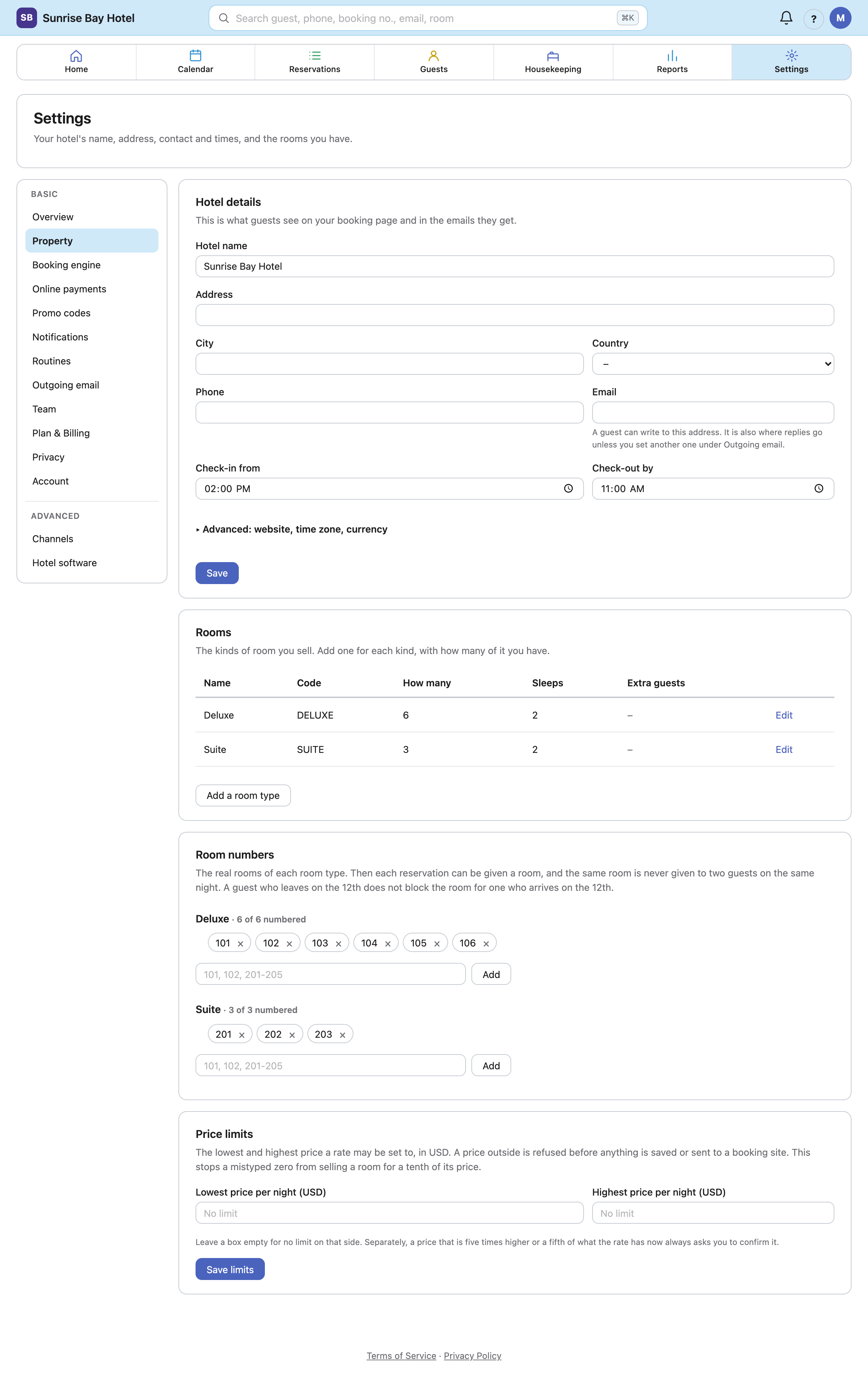
Hotel details is what guests see on your booking page and in the emails they get: the name, address, city, country, phone and email. The email is the address a guest can write to; replies go there unless you set another under Outgoing email. Set the check-in from and check-out by times too. Under Advanced on the same card you can set your website and the time zone. The currency is fixed once the hotel is created.
Rooms are the kinds of room you sell. Add one for each kind, with the name, a code, how many you have, how many it sleeps and the extra guests it takes. Choose Edit on a row to change it.
#Room numbers
Room numbers are the real rooms of each room type, such as 101, 102, 201-205. Type them under the room type and choose Add. Once they exist, each reservation can be given a room, and the same room is never given to two guests on the same night. A room that still has a guest today or later cannot be removed: give those reservations another room first.
#Notifications
Open Notifications. You can be emailed the moment a booking arrives or is cancelled, whether it came from your booking page or from someone on your team.
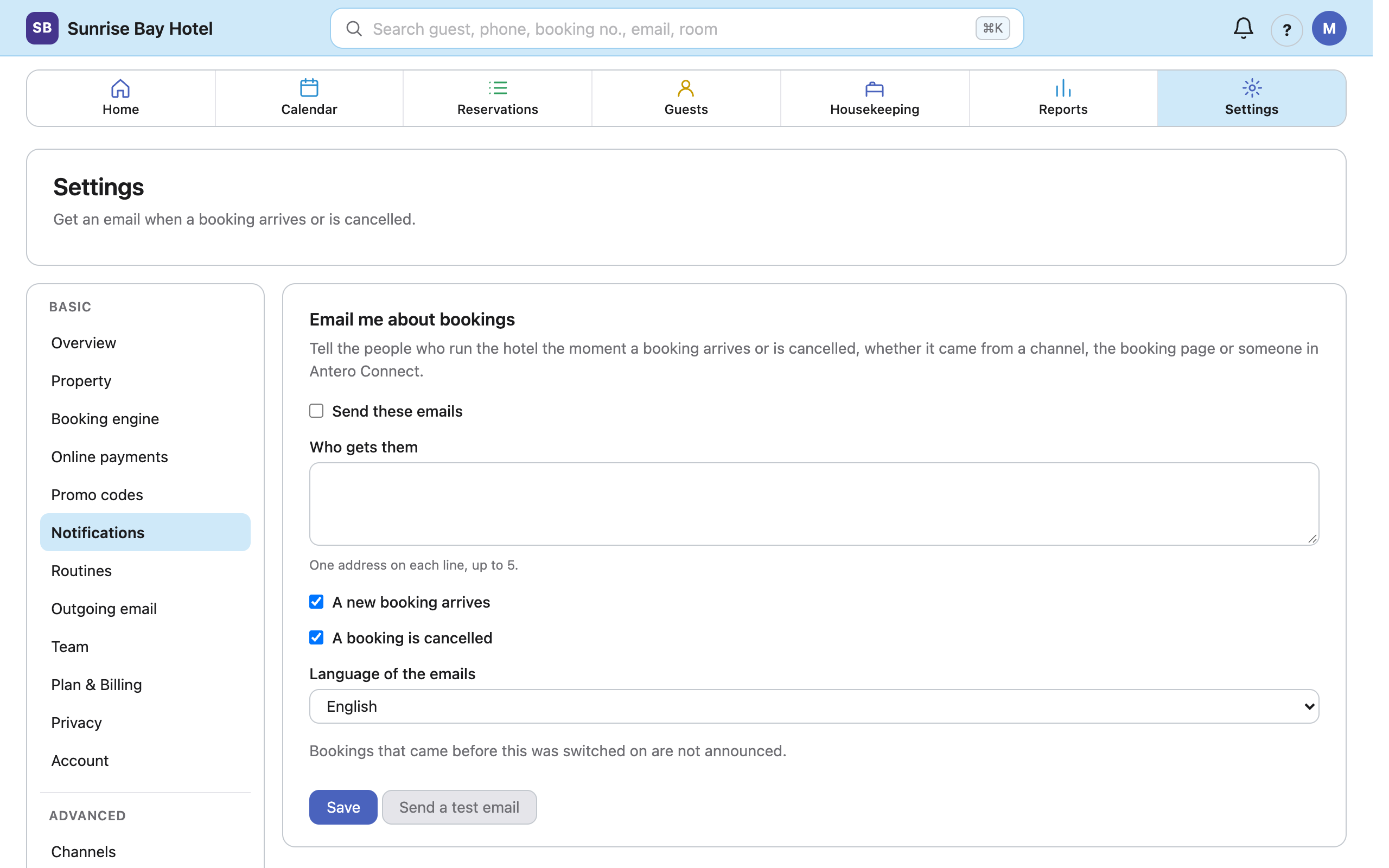
- Tick Send these emails.
- Under Who gets them write one email address per line, up to five.
- Choose what to be told about: A new booking arrives, A booking is cancelled, or both.
- Choose the language of the emails and Save.
- Choose Send a test email to see what one looks like.
Bookings that came before you switched this on are not announced.
#Emails to your guests
Open Routines. Antero can write to a guest for you, so you do not have to remember. These emails are for stays you made yourself (by hand or on your booking page) that have the guest's email address.
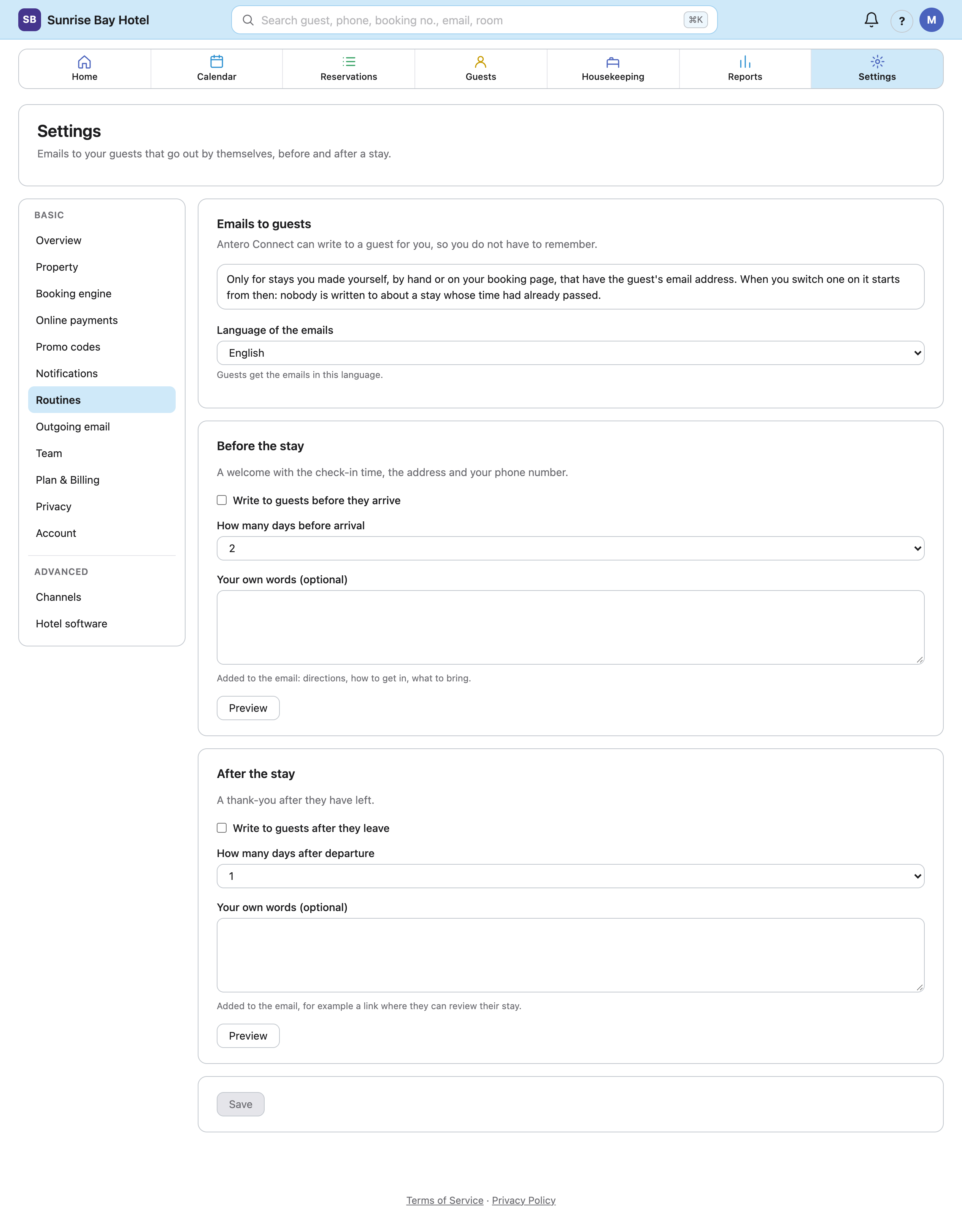
- Before the stay: a welcome with the check-in time, the address and your phone number. You choose how many days before arrival, and you can add your own words, such as directions or how to get in.
- After the stay: a thank-you after they leave, for example with a link where they can review the stay.
Choose Preview to see the email. When you switch one on it starts from then: nobody is written to about a stay whose time had already passed.
#Outgoing email
Open Outgoing email. Emails to your guests, such as the booking confirmation, come from Antero on your behalf. Here you choose the sender name they show and the reply-to address where a guest's answer goes.
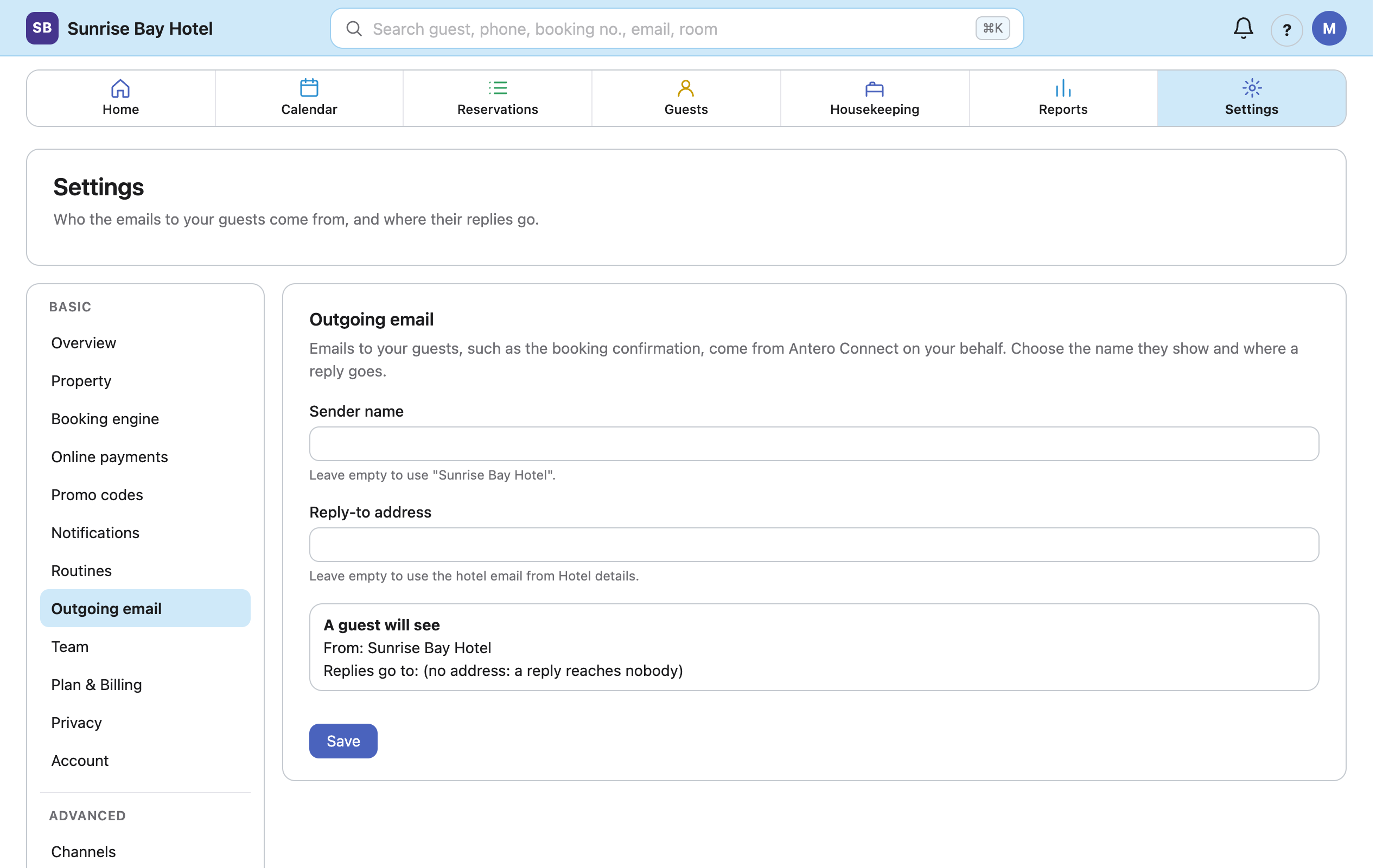
Under the form, "A guest will see" shows exactly how the sender line will look. Set a reply-to address, or a guest's reply reaches nobody.
#Team
Open Team. Add the people who work with you and choose what each may do.
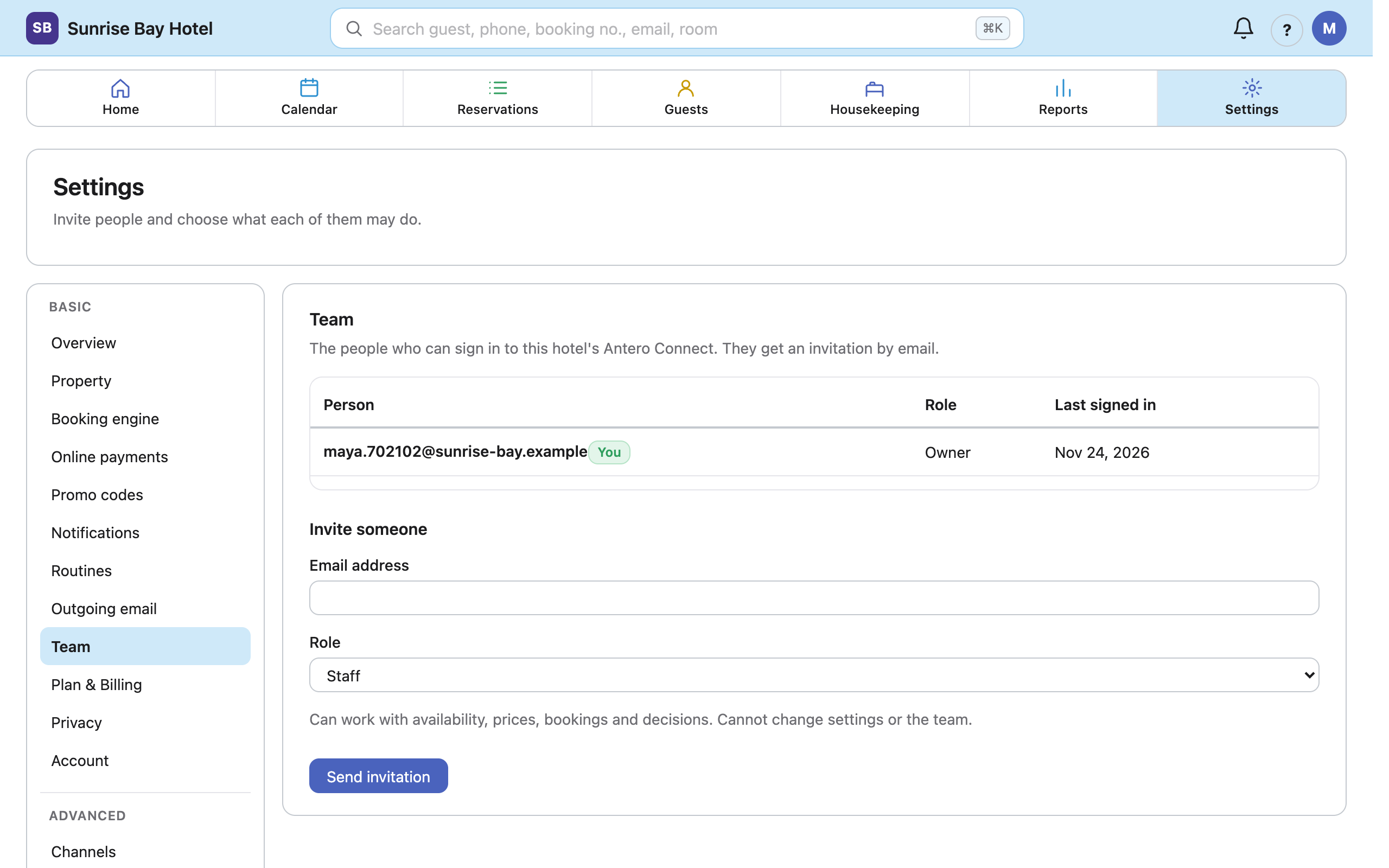
- Under Invite someone, type their email address and choose a role.
- Choose Send invitation. They get an email; they join when they sign in with the link in it.
The roles:
| Role | What they can do |
|---|---|
| Owner | Can do everything, including adding and removing owners. |
| Admin | Can change settings, keys and the team, except owners and other admins. |
| Staff | Can work with availability, prices, bookings and decisions. Cannot change settings or the team. |
| View only | Can look, but not change anything. Guest details are hidden. |
Only an owner can choose the plan and close the account.
#Your own account
Open Account. You always sign in with an emailed link. A password is optional, a second way in: type a new one of at least 10 characters and choose Save password.
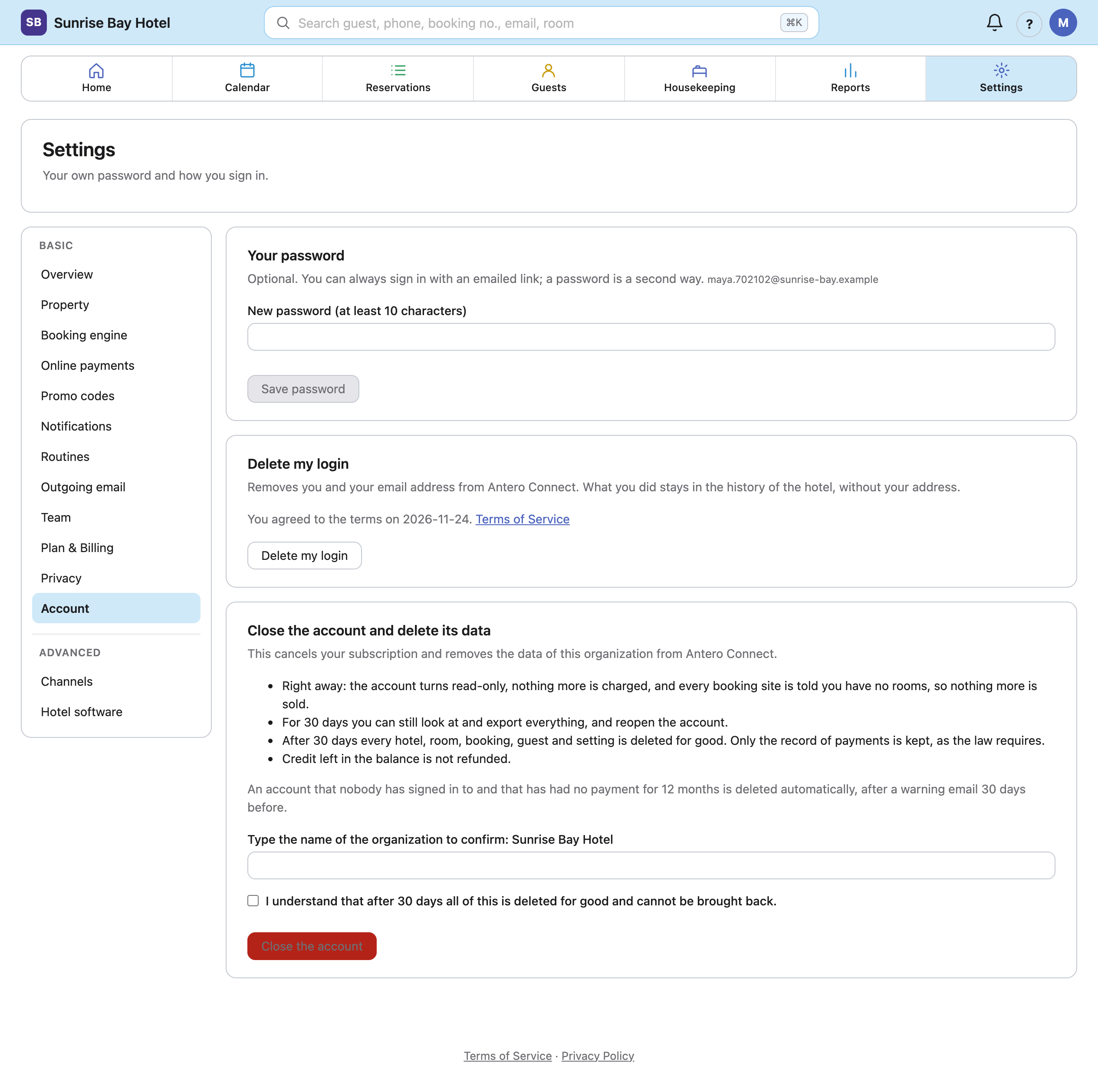
Here you can also delete your own login, or (as an owner) close the whole account. Both are explained in Help, support and your data.