#Help, support and your data
Updated Nov 21, 2026
#Your inbox
The bell at the top opens Needs your attention: only the things a person has to look at, each with a suggested next step.
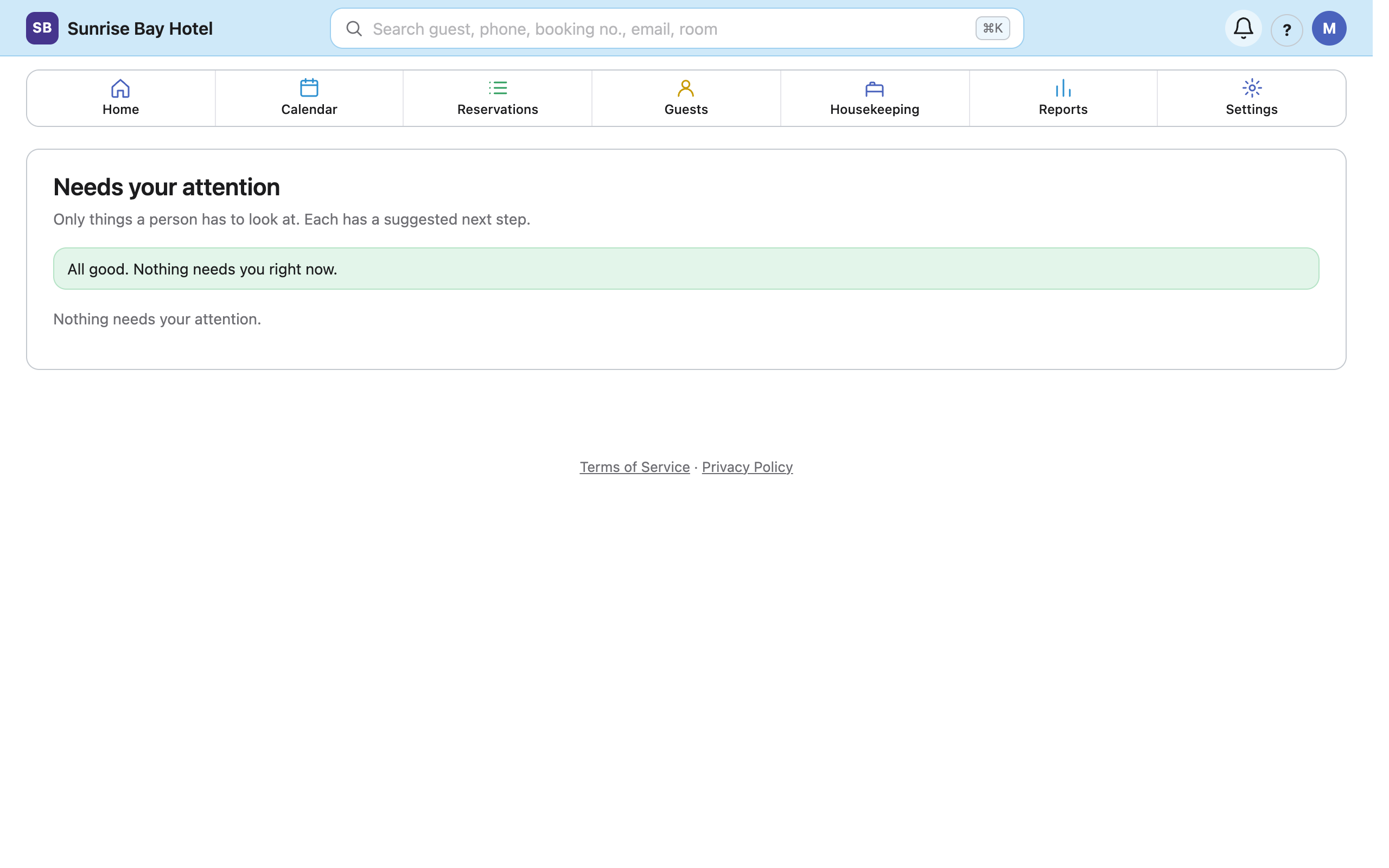
When there is nothing to do, it says so: "All good. Nothing needs you right now.". When something appears, it is marked Urgent or Look soon, says since when, and offers one or two buttons. Choose Ignore it to make an item go away without changing anything.
A number next to the bell tells you how many items wait. If a day goes by with nothing in the inbox, that is good news, not a sign that something is broken.
#Ask us
Open the ? at the top, Help & support.
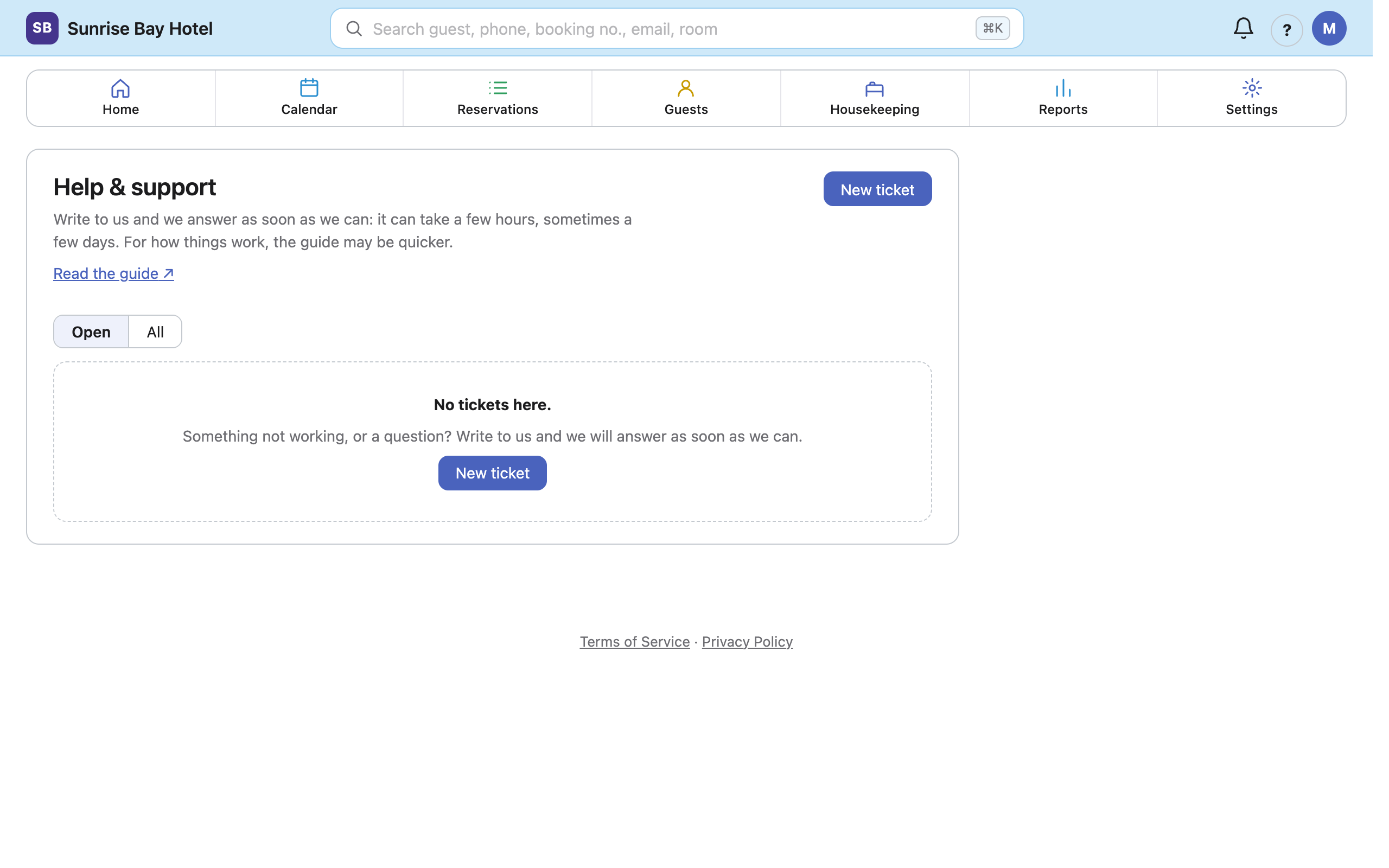
- Choose New ticket.
- Say what it is about: a channel connection, availability and prices, bookings, plan and billing, or something else.
- Write what you see and what you expected. Say the booking number or the date if it is about one.
We answer as soon as we can: it can take a few hours, sometimes a few days. When we answer, we email you a link. You can reply in the same ticket. A ticket shows as Open, Answered: waiting for you, Solved or Closed. A closed ticket cannot be answered; write a new one and mention the number of the old one.
#Your guests' data
Under Settings, Privacy.
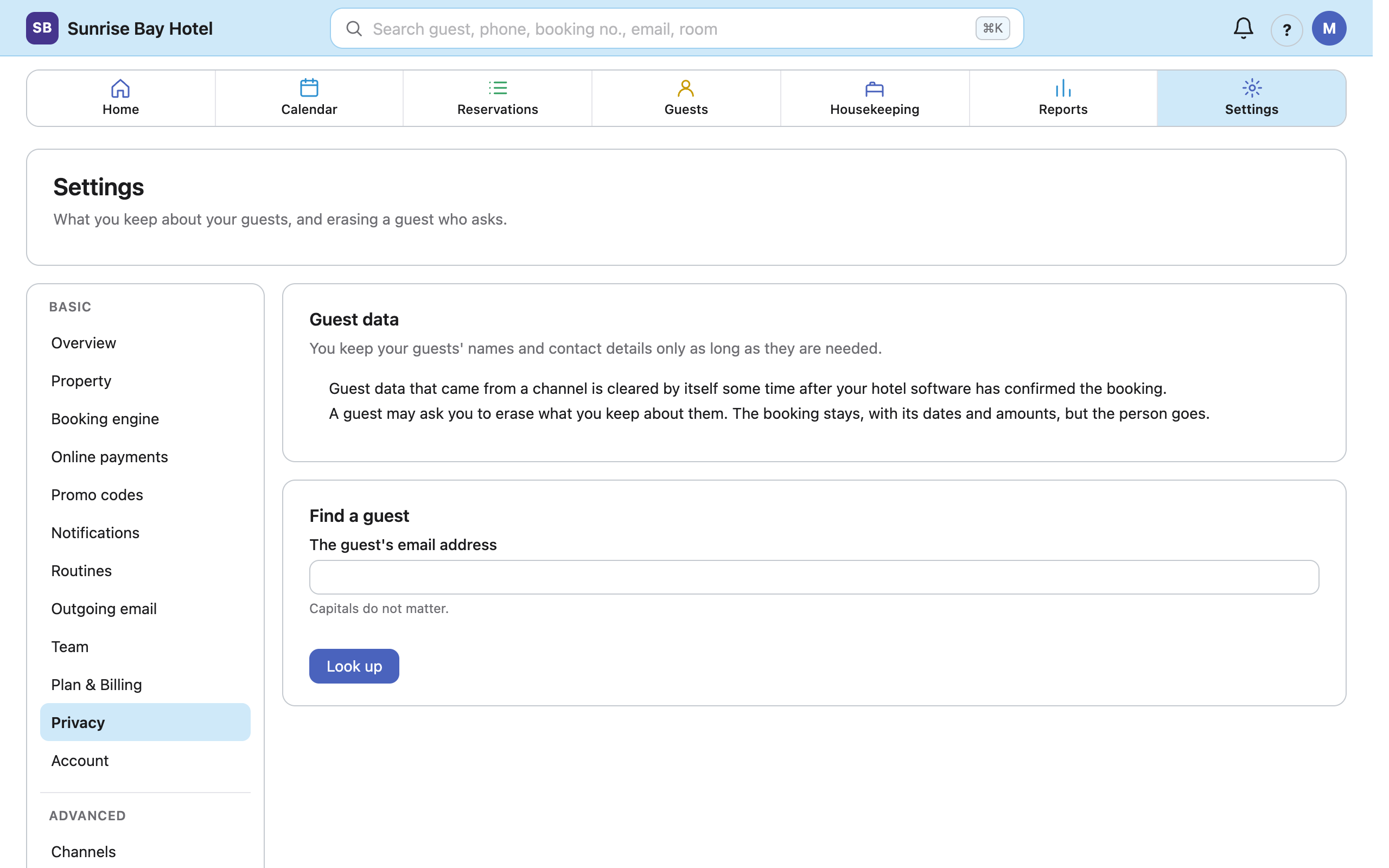
You keep your guests' names and contact details only as long as they are needed.
#Erasing a guest
A guest may ask you to erase what you keep about them. Under Find a guest, type the guest's email address (capitals do not matter) and choose Look up. You see every booking that holds that guest. Choose Erase this guest and confirm.
- The name, email, phone and country are removed from every booking whose stay is over or cancelled.
- The booking stays, with its dates and amounts, but the person goes.
- Bookings still to come keep their guest for now, and the page lists them. Erase again after the stay.
- The identity of the guest (document number, date of birth and the photo of the document) goes too, unless a stay is still to come: then it stays until the stay is over and you erase again.
- This cannot be undone.
#Your own login
Under Account you can delete your own login. It removes you and your email address from Antero. What you did stays in the history of the hotel, without your address. You are signed out at once, and it cannot be undone. If you are the only owner of an account, close the account or make someone else an owner first.
#Closing your account
Only an owner can close the account, under Account, Close the account and delete its data. Read what happens:
Right away: the account turns read-only, nothing more is charged, and every booking site is told you have no rooms, so nothing more is sold.
For 30 days you can still look at and export everything, and reopen the account.
After 30 days every hotel, room, booking, guest and setting is deleted for good. Only the record of payments is kept, as the law requires.
Credit left in the balance is not refunded. To confirm you type the name of the organization exactly as shown, and tick that you understand that after 30 days everything is deleted for good.
An account that nobody has signed in to and that has had no payment for 12 months is deleted automatically, after a warning email 30 days before.
#The terms
You agreed to the Terms of Service and the Privacy Policy when you signed up. Both are linked at the bottom of every page of the panel.